Computer fundamentals
A little basic computer science is very useful for all STEM fields!
Recording
The following is a recording on this topic, I hope you find it useful!
Feel free to watch at 1.5x or 2x speed.
Note: If you find something missing or incorrect in the recording, then please let me know!
Motivation
Understanding how computers work is crucial for data scientists
- Efficient Coding: Proficiency in computer architecture helps optimize code for faster processing & memory management.
- Algorithm Design: A grasp of hardware aids in designing algorithms tailored to the computer’s capabilities.
- Data Handling: Efficient data storage, retrieval, & manipulation improve performance with large datasets.
- Resource usage: Knowledge of system resources enables optimal utilization & scalability of compute power.
- Problem Solving: Understanding hardware enables better debugging & identifying performance bottlenecks.
- Collaboration: Effective communication with IT teams & hardware experts enhances cross-functional projects.
- Career Versatility: Understanding opens doors to diverse roles, from machine learning to system optimization.
- Continuous Learning: As technology evolves, foundational computer knowledge helps adapt to new tools
Note: These skills become very important in DSAN-6000 (big data & cloud computing)
Hardware
Physical components of a computer
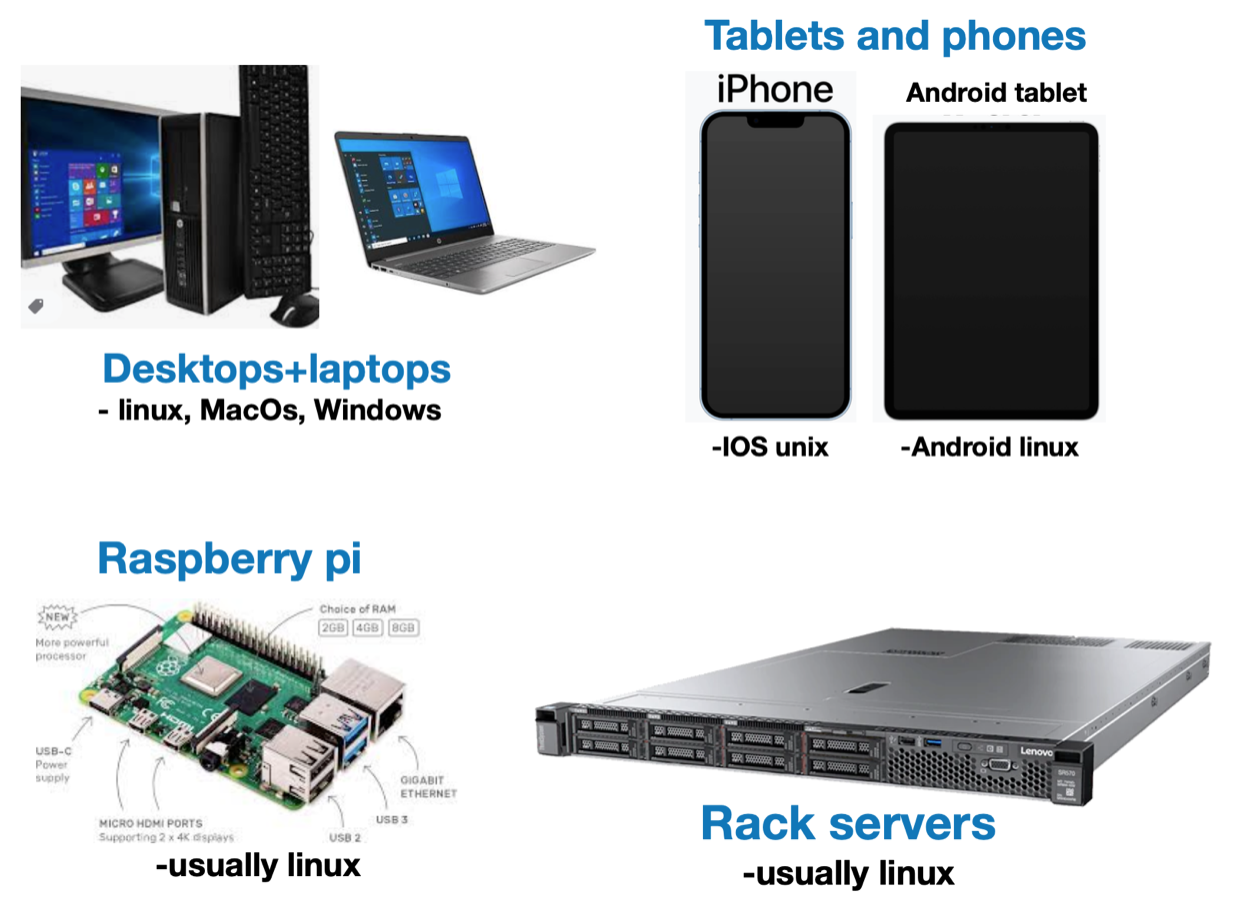
Computer form factors
Computers come in many shapes & sizes, however, they’re all basically the same inside
Hardware components
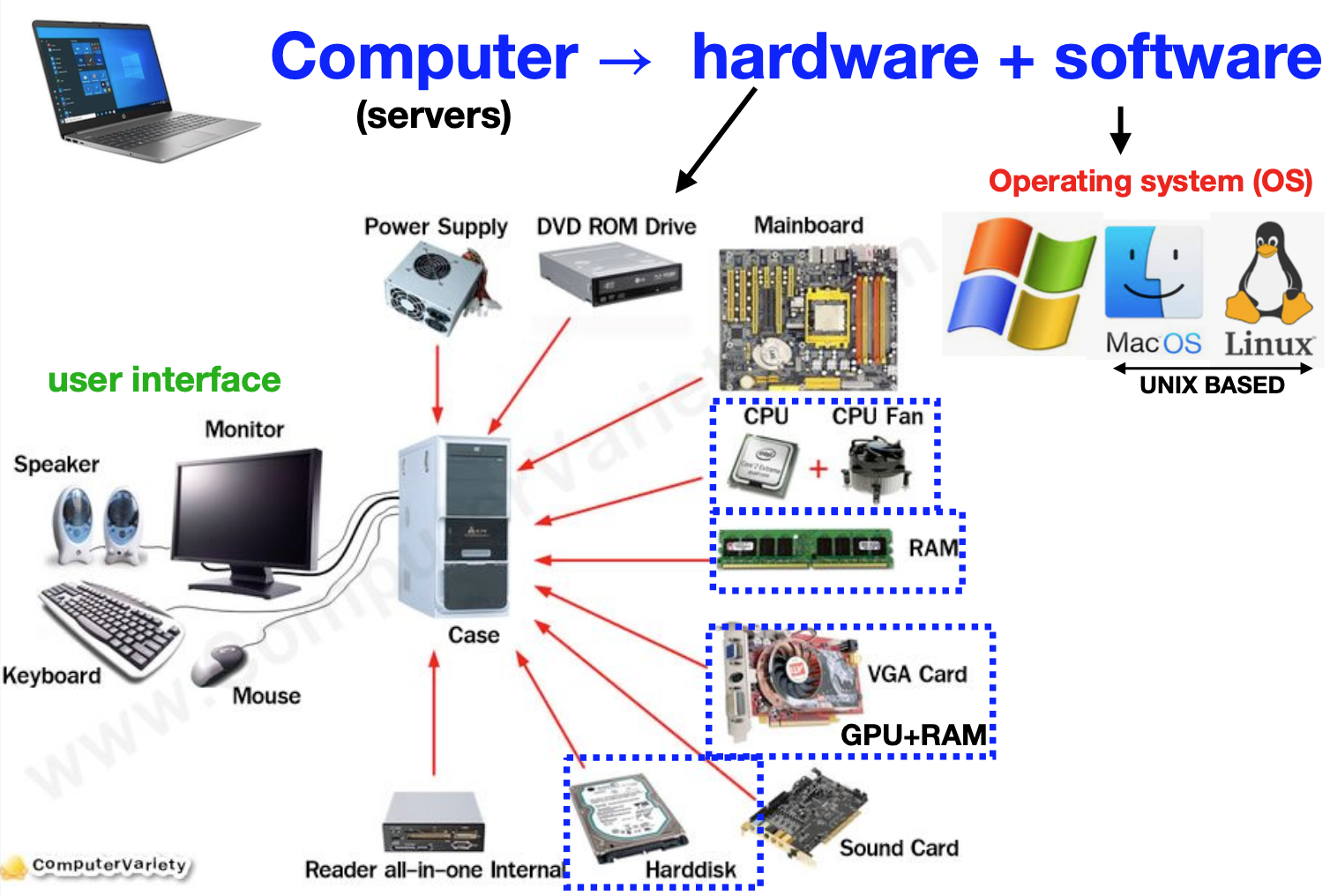
- Broadly speaking, the following are the fundamental components of all computers:
Computer hardware
Read over the following at home- In general, computers consist of several fundamental components, including
- Central Processing Unit (CPU): Executes instructions, performs calculations, & manages tasks, acting as the computer’s brain.
- Motherboard: Main circuit board connecting all components, providing communication & power distribution pathways.
- Random Access Memory (RAM): Offers fast-access memory for active programs, enhancing multitasking & performance.
- Storage Drives: Include Hard Disk Drives (HDDs) for high-capacity storage and Solid State Drives (SSDs) for faster data access.
- Power Supply Unit (PSU): Converts and supplies power to components, ensuring stable operation.
- Graphics Processing Unit (GPU): Handles graphical computations, vital for video rendering, gaming, and complex visuals.
- Cooling System: Comprises fans, heat sinks, and sometimes liquid cooling to dissipate heat and prevent overheating.
- Case/Chassis: Houses and protects components, facilitating airflow and accommodating expansion.
- Input/Output Ports: Enable connection to external devices, such as USB, audio, video, and networking ports.
- Optical Drive: Reads and writes optical discs like CDs, DVDs, or Blu-rays (optional in modern systems).
- Expansion Slots: Allow adding extra components like graphics cards, sound cards, or network adapters.
- Operating System: Software interface managing hardware resources, enabling software execution and user interaction.
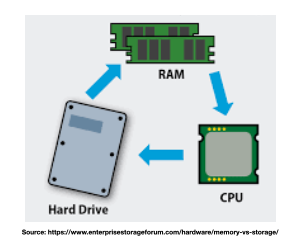
Storage vs memory
- Memory (RAM)
- Short term data storage
- FAST communication with CPU
- Data vanishes when the computer is shut-off (short term memory)
- Storage (hard-disk)
- Long term data storage
- SLOWER communication with CPU
- Data exists even when the computer is shut-off (permanent storage)
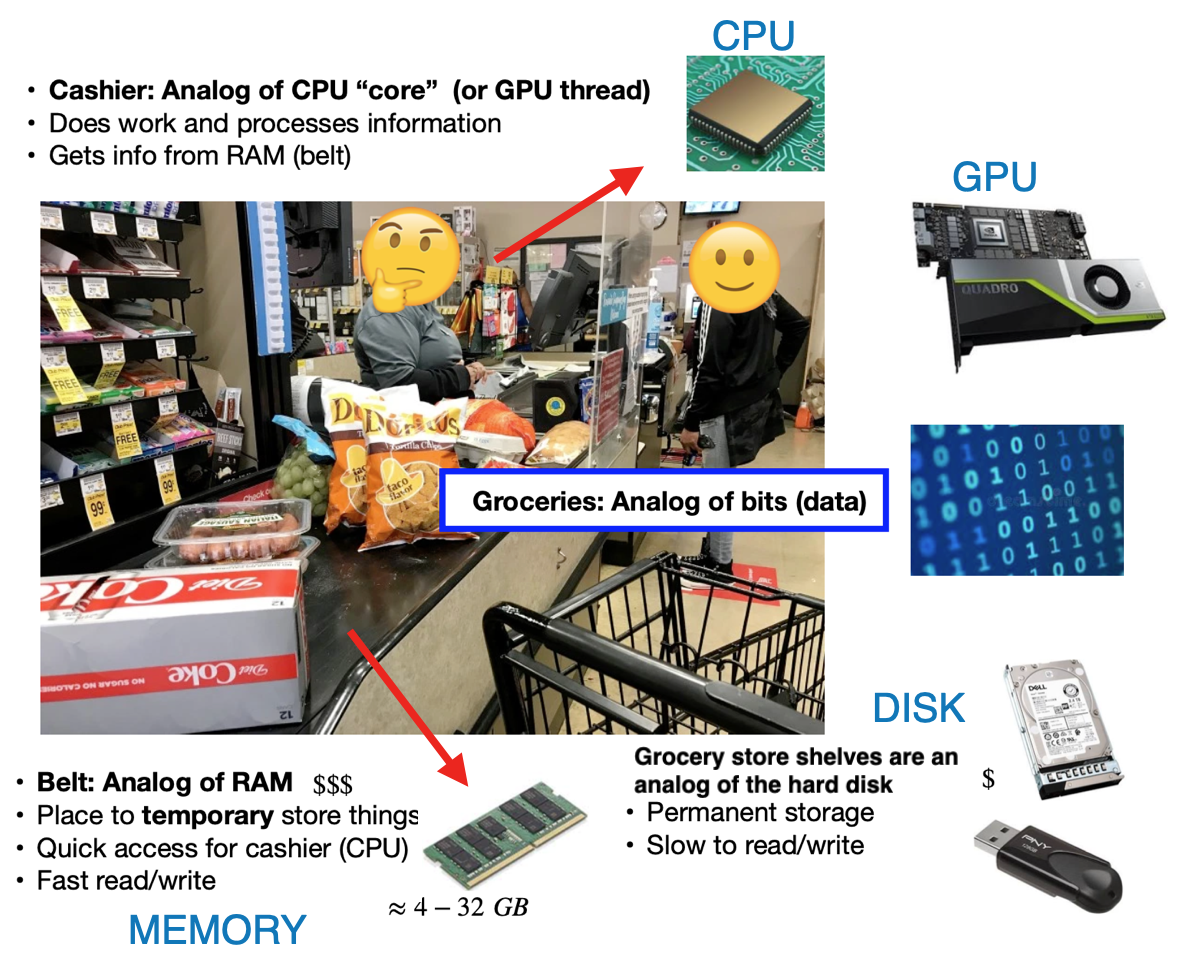
Basic computing analogy
- Computers are all about
data processing, a grocery store is a useful analogy
Rack server example
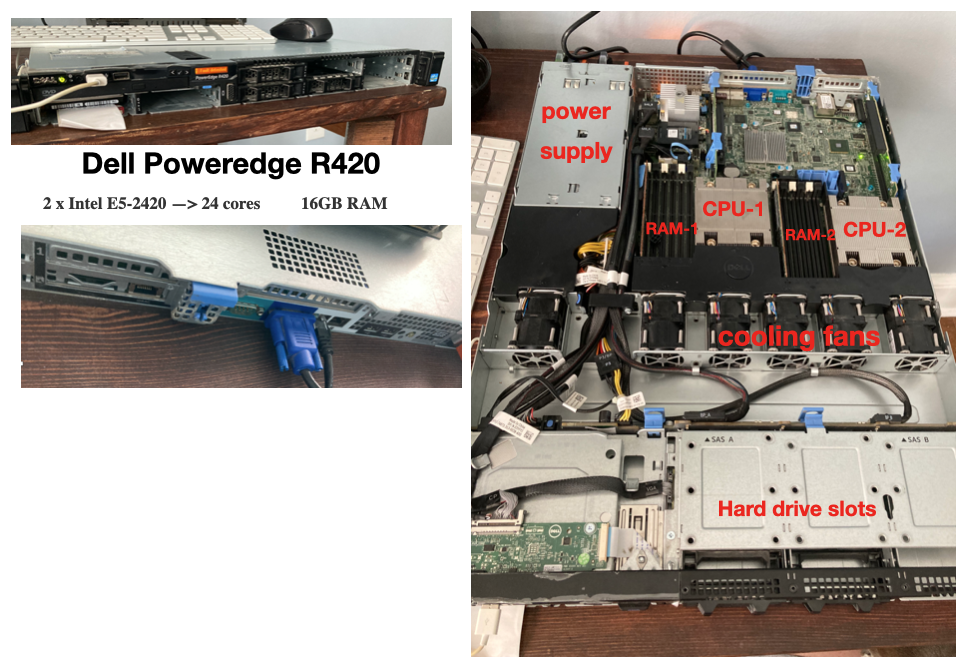
- The Dell PowerEdge series is a class of server for high performance computing (HPC)
- Have been a common
work horsein the HPC field for decades
- Have been a common
- If we open the server up, we can see the various components discussed above.
File systems
Recording
The following is a recording on this topic, I hope you find it useful!
Feel free to watch at 1.5x or 2x speed.
Note: If you find something missing or incorrect in the recording, then please let me know!
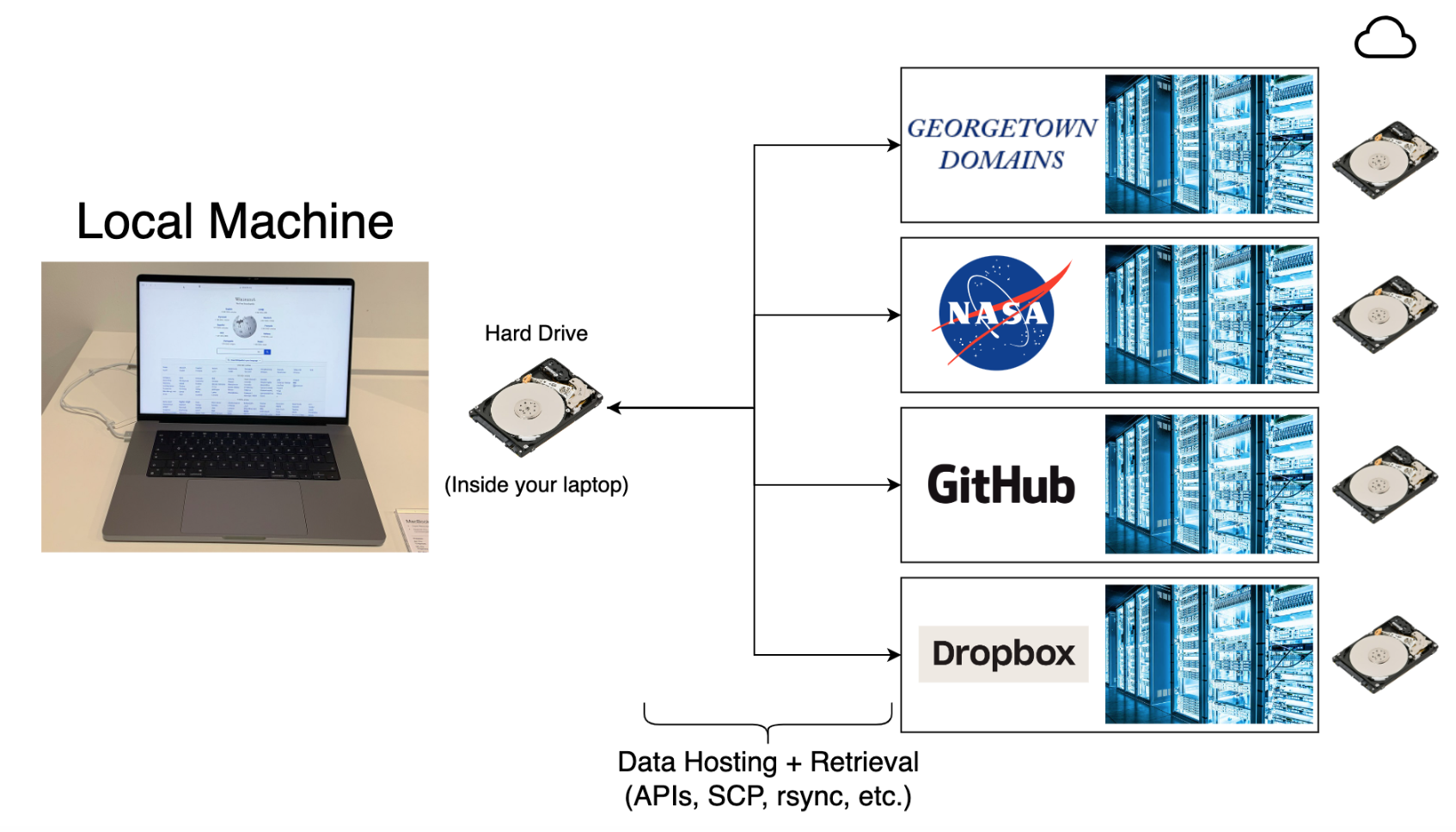
Where does data live?
- All data lives in a
file-systemon ahard-disksomewhere, you CAN’T do data science without understanding file-systems! - A computer file system is a structured method for storing, organizing, & managing files.
Storage types (optional)
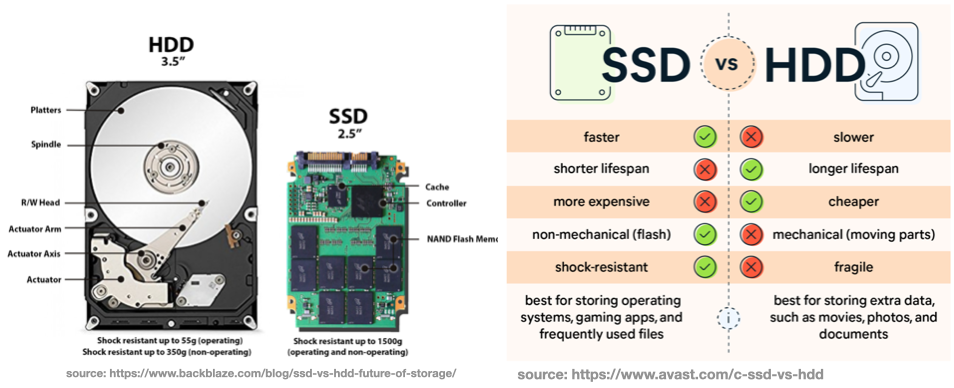
- HDD (older) and SSD (newer) are the current options for computer hard-disks.
Aside: Modern buried treasure
- In 2012, James Howells threw away a hard drive during an office clear out
- BitCoin was less valuable in 2012, and he forgot there were Bitcoins stored on the disk.
- In 2022, the Bitcoin on the disk was worth an estimated 184 million dollars.
- Howells plans to spend millions digging up a Newport landfill to find the lost hard drive.

Overview
- Paths & file-system familiarity is essential for accessing & moving data from servers
- The file system is composed of
directories(folders),programs, andfiles- The
filescontain data OR instructions forprogramcreation - Files, programs, & folders have associated
permissionsto control user access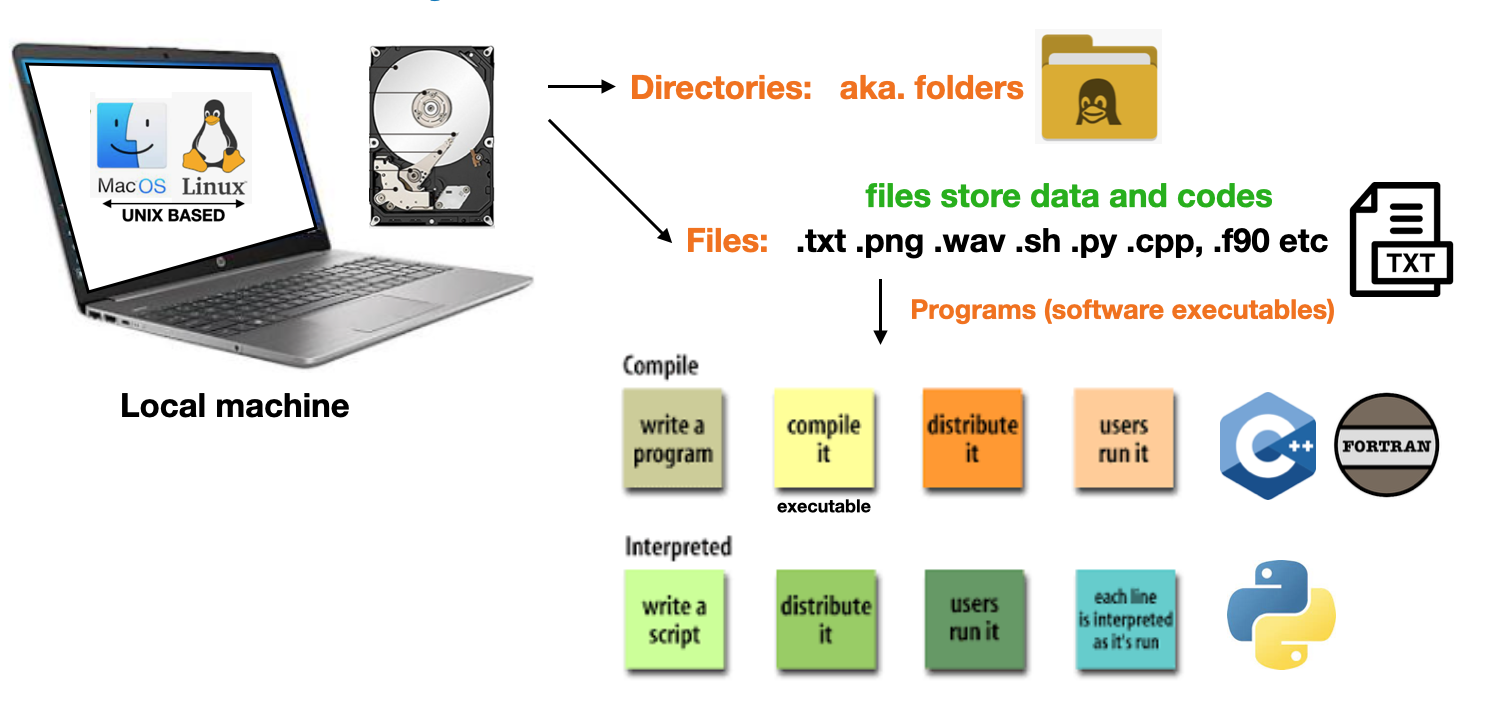
- The
Directory tree
- The Files, folders, & executables are organized in a hierarchical
directory tree - The
baseof the tree is called theroot directory - The root folder is denoted by
/on Unix machines and\on Windows machines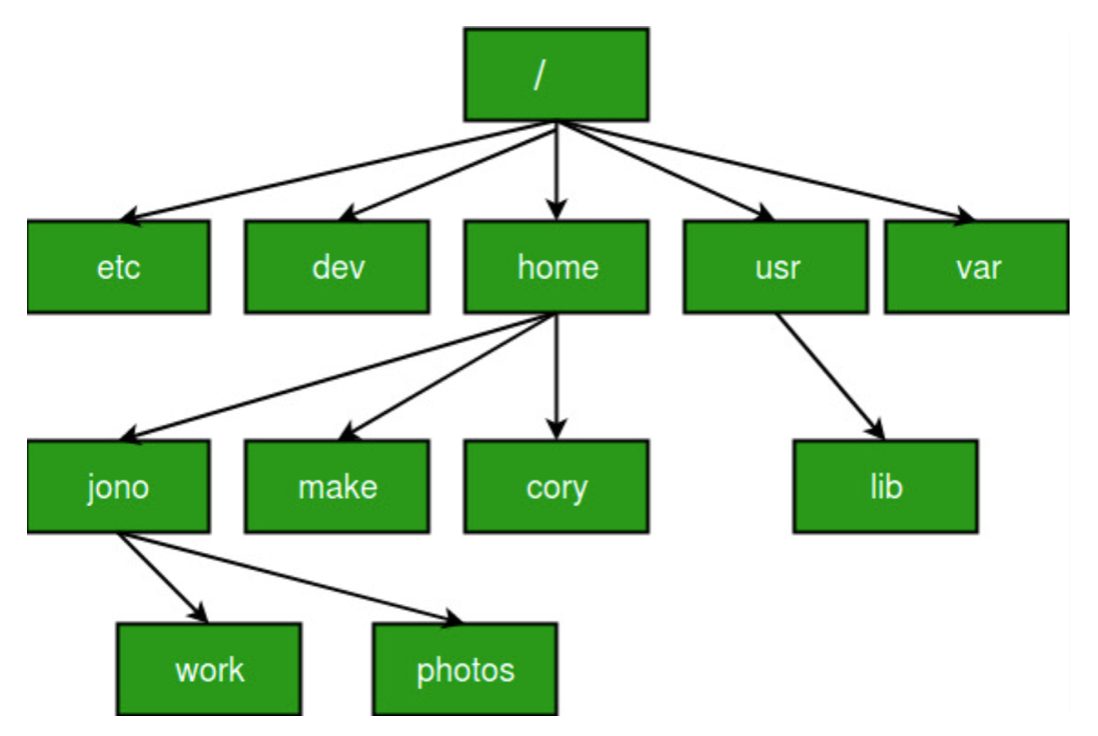
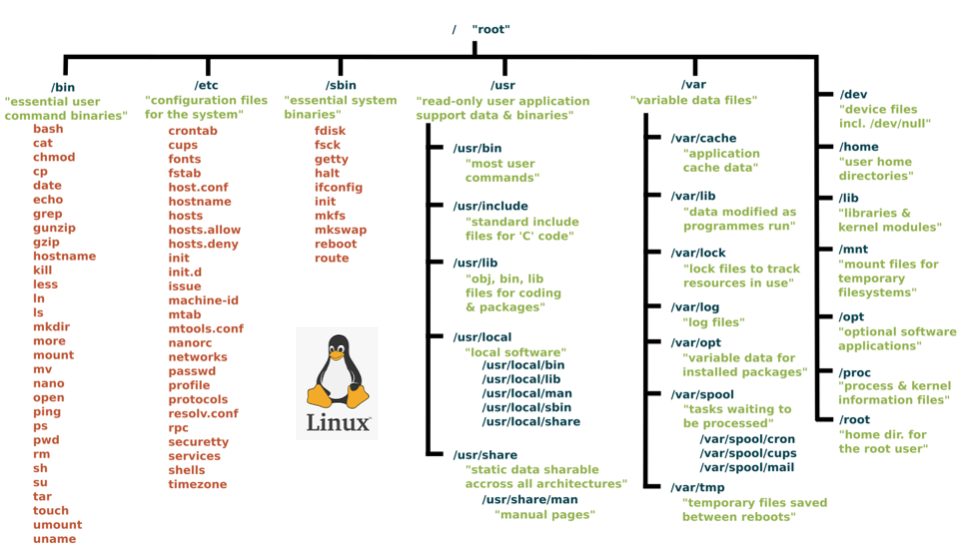
Linux directory tree
- The following diagram shows the directory tree of a Linux computer
Paths
Pathsare “addresses”, they let users navigate the file-system to locate files & folders- Paths can be either
relative, i.e. a location relative to the currentfolder, ORabsolutelocation relative to therootdirectory - The
current working directory(CWD) is where you currently “are” in the tree. - On Unix, the CWD is denoted
./& one leveldownis denoted../(closer to the root) - The slashes are reversed on windows
\, but otherwise the concept is the same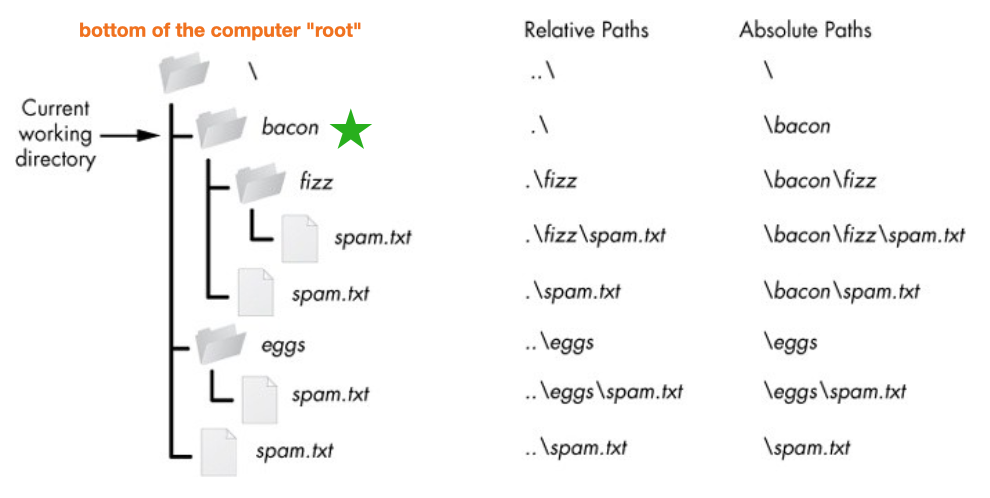
File permissions
System administratorscontrol how muchaccessdifferentusershave with-in the file-structure.- Access is based on file permissions associated with a user’s Login ID
- Computers keep a database of which user owns each files, & which users have permission to view, edit, & execute EACH file, folder, or program.
- Understanding basic data security is a fundamental skill in most modern careers … you don’t want to be the careless person that leaves a software vulnerability and gets your company hacked

Unix file permissions
- Unix file permission codes are numeric representations (octal) for read, write, execute permissions, assigned to owners, groups, and others, regulating file access and security.
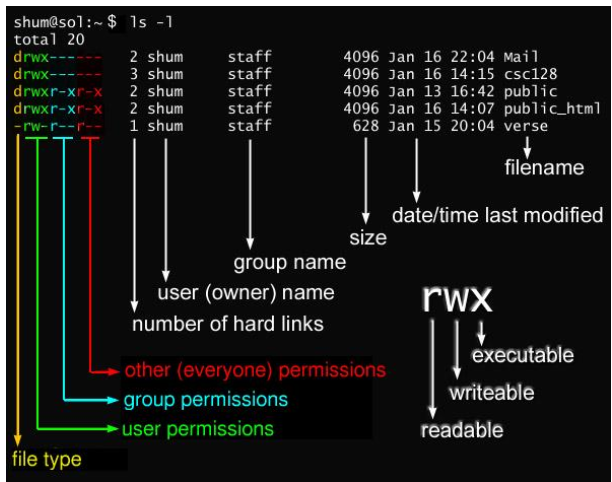
- If a user has authority, they can change file permissions with the
chmodcommand
Common file permissions codes
- The following are common permission options.
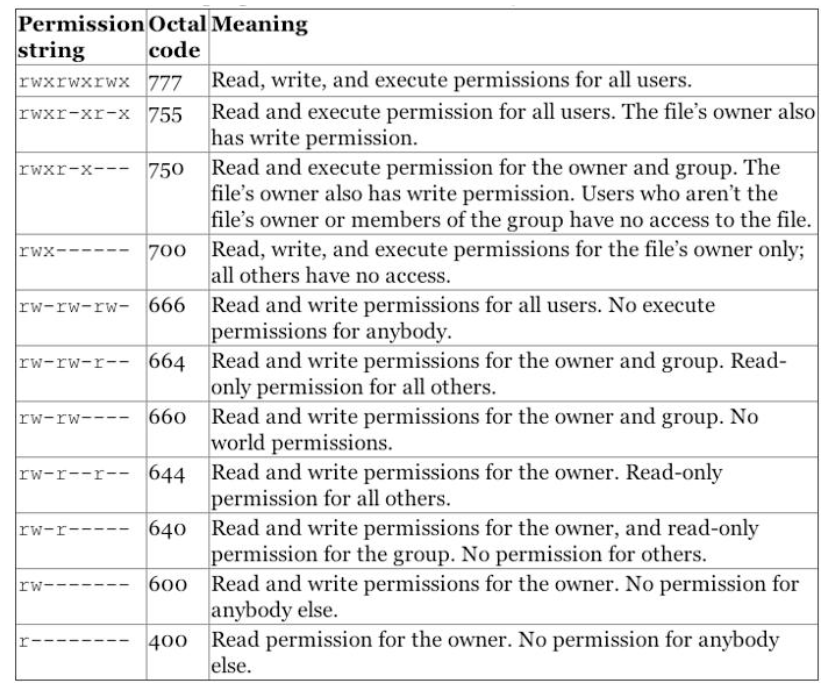
NOTE:For websites: files are ususually644and folders755- This could be set with
chmod 644 my_file.html - You can set all website files permssiosn with the following linux commands
for i in $(find _site -type f); do chmod 644 $i; donefor i in $(find _site -type d); do chmod 755 $i; done`
- This could be set with
Super-users
- Super-users have total control over the file-system, can view, edit, or execute anything.
- A SuperUser is synonymous with
root-user, means there is no restrictions on your power over the computer
- A SuperUser is synonymous with
- Usually you are NOT a super-user and you need to coordinate with
system administrators, who have super-user status, to set up and control access

“With great power comes great responsibility”
- The Spider-Man’s Uncle
Linux command line
A brief introduction.

What is Linux?
- Linux describes a family of operating systems (OS), similar to
WindowsorMacOS - The key difference is that
Linuxis aFREEandopen-sourceoperating system.
- It has a
Unix-likeOS kernel originally created byLinus Torvaldsin1991. - It forms the core of various Linux-based operating systems (distributions) such as Ubuntu, CentOS, RedHat, Fedora, and more.
- Linux is known for its stability, security, and flexibility.
- Almost all of the worlds super-computers are Linux machines
- Web-servers & AWS virtual machines are also often Linux (e.g.
GU domains)
Linux key features (optional)
- Linux offers a flexible and powerful platform for various computing needs, from personal use to enterprise-level systems.
- Open Source: Linux’s source code is freely available, allowing users to modify, distribute, and contribute to its development.
- Kernel: Linux serves as the core of the operating system, managing hardware resources, memory, and system processes.
- Multiuser and Multitasking: Linux supports multiple users and concurrent tasks, enhancing efficiency.
- Security: Linux’s design and permissions system offer robust security features, minimizing vulnerabilities.
- Variety of Distributions: Different Linux distributions cater to diverse needs, from server systems to desktop environments.
- Command Line Interface: Linux offers a powerful command line interface (CLI) for system management and administration.
- Graphical User Interface: Most Linux distributions include GUI options, making it user-friendly for various users.
- Software Repositories: Distributions provide software repositories for easy installation and updates of applications.
- Networking: Linux is widely used for networking, powering servers, routers, and other network devices.
- Customization: Users can customize various aspects of their Linux environment, adapting it to their preferences.
- Server and Cloud Usage: Linux is a popular choice for web servers, cloud computing, & containerization platforms like Docker.
- Community and Support: The Linux community provides extensive support, forums, and documentation resources.
Why learn the Linux command line?
Useful line on your resume- Intuitive framework and tool-set for computational sciences
- Better understanding of system and network administration
- Almost all of the worlds super-computers are Linux machines
- Web-servers and AWS virtual machines are often Linux
- More intuitive interfacing with hardware and software
- Smoothly interact with GitHub without using a web browser or GUI
- Smoothly switch between environments with Conda
- Can “get inside” other computers via the
ssh command
Example: Can “get inside” other computers via the ssh command
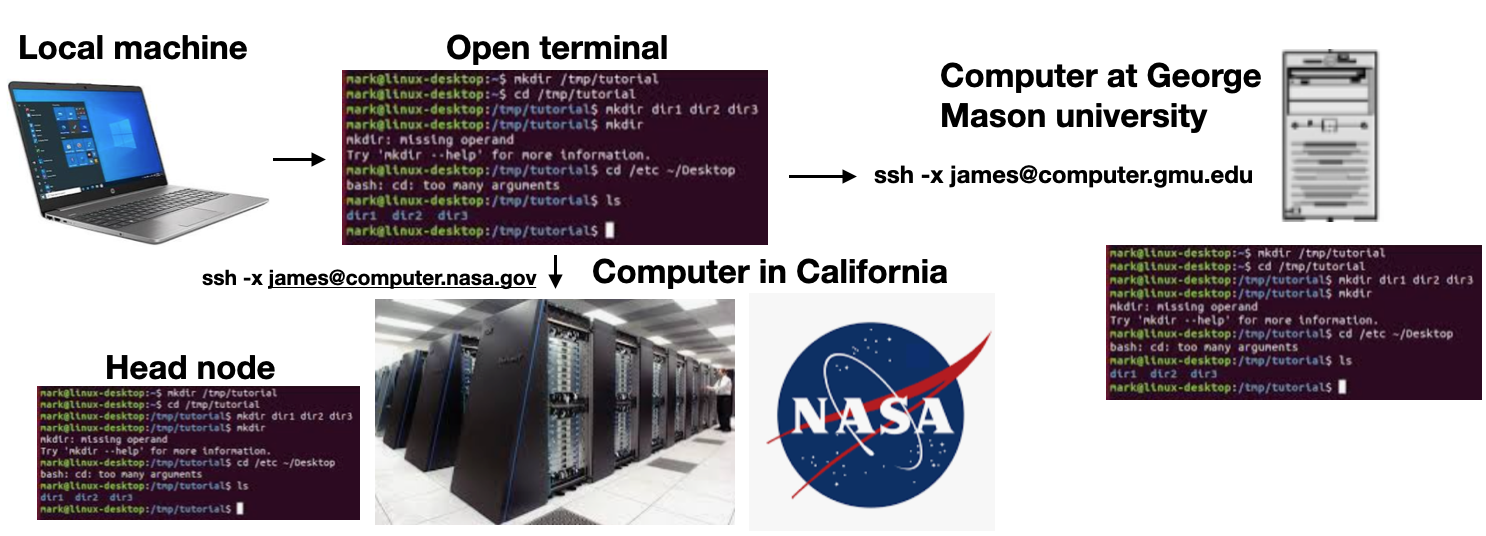
Interacting with the file-system
Option-1:Interact with the file system via a GUI (graphical user interface)
Option-2:Interact via a command line interface(CLI)
-
IMPORTANT:The Unix command line is actually more like a computer scripting language (e.g. python), known asshell scriptingorbash. It has all of the familiar coding constructs (for-loops, while loops, if/then statements, … etc) -
Hidden files: Files & folders that start with.are hidden from the GUI interface (e.g.~.bash_profile)
Command line access options
Mac & Linux:MacOS is very similar to Linux, both have a built-inUnixCLI.
Windowsterminal options:- Command prompt: A text-based interface to execute commands and perform tasks
- NOT a Unix CLI, closer to
MS-DOS, completely different command structure
- NOT a Unix CLI, closer to
- Windows powershell: Windows PowerShell is an advanced command-line shell and scripting language for automation and system management.
- NOT a Unix command line, but more “Unix-like” than command prompt
- Anaconda powershell: Quasi Unix command structure but still quite different
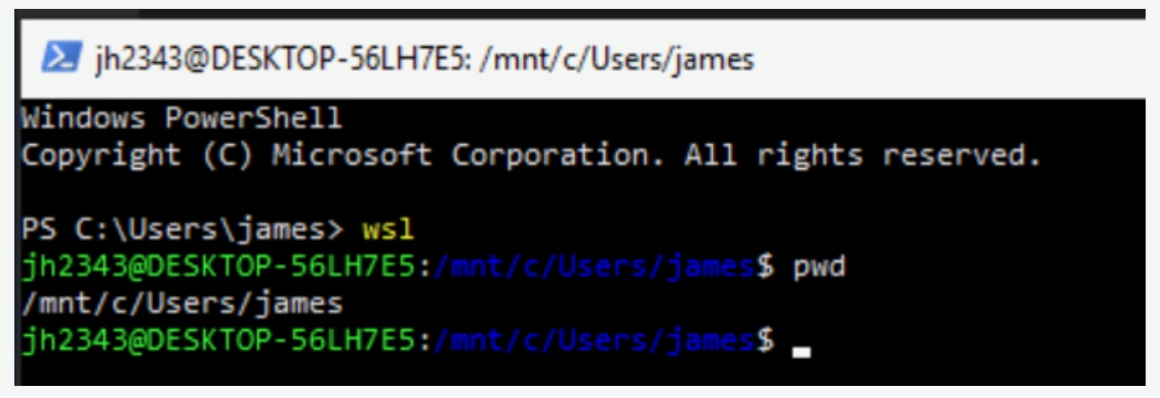
- Windows subsystem for Linux (WSL): (
highly recommended)- True Linux experience from within Windows,
more on this later
- True Linux experience from within Windows,
- Command prompt: A text-based interface to execute commands and perform tasks
GU domains: Command line access
- The
GU domainsweb-servers are Linux, you can “get inside” the servers via a browser- You can also
sshinside from your laptop (more on this next week)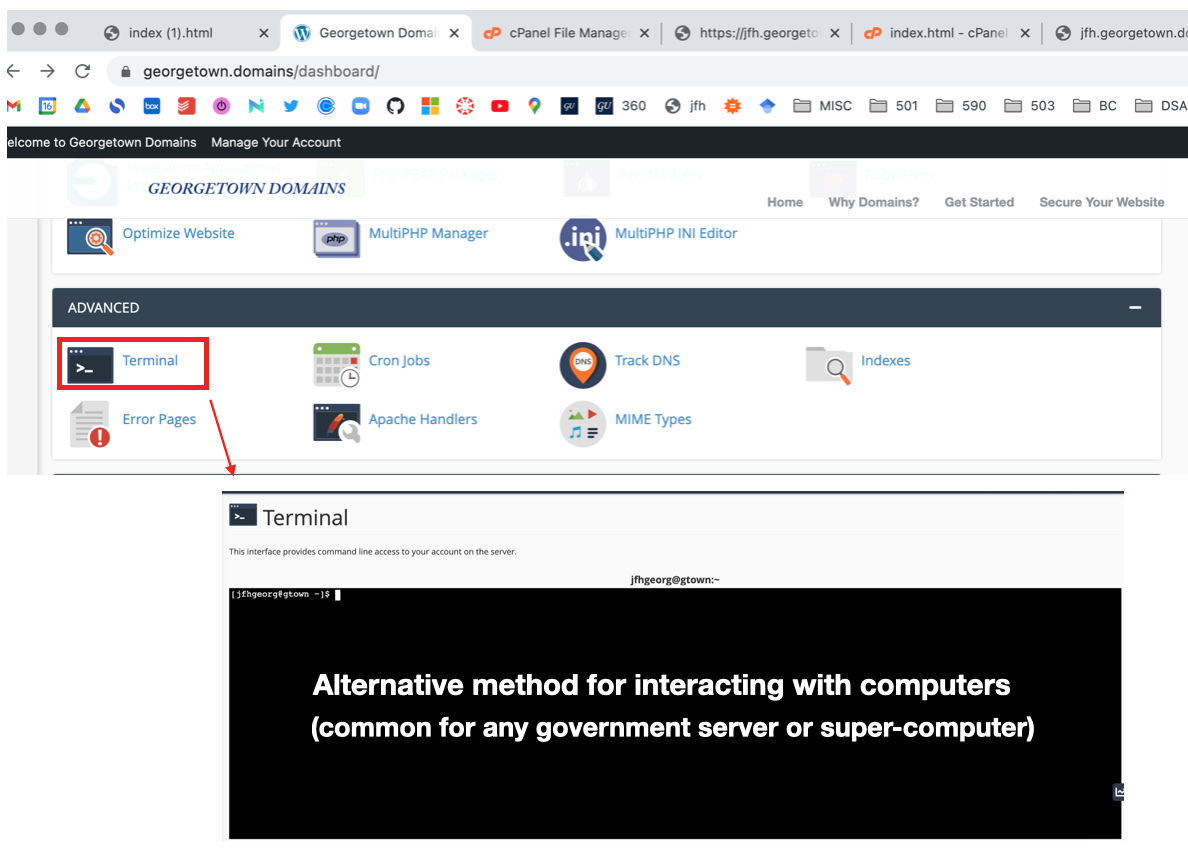
- You can also
- Note: that you are NOT inside your laptop here!! But rather the GU-domains server, which is just a REMOTE computer located somewhere else in the world (e.g. California or China).
Linux commands & variables
- Everything we discuss on the coming slides applies to (1) Linux CLI, (2) WSL in Windows, (3) the MacOS CLI (although minor differences do exist)
Linux Commands- A Linux command generally follows the following structure:
command [options/flags] [arguments]- Command: The primary action or task that you want the command to perform.
- Options/Flags: These are preceded by a hyphen
-or double hyphen--and modify the behavior of the command. They are usually optional. - Arguments: Targets or inputs for the command (files, directories, text, etc).
Linux Variables- Variables are typically denoted using uppercase letters & underscores, e.g. MY_VARIABLE. Values are assigned with
variable_name=value - Use
$before the variable name to access its value, e.g$MY_VARIABLE.
- Variables are typically denoted using uppercase letters & underscores, e.g. MY_VARIABLE. Values are assigned with
Command example: ls
For example, let’s take the ls command and describe its structure with flags:
ls [options/flags] [arguments]
- Command:
lsstands for “list” and is used to list files and directories. - Options/Flags:
-lor--long: Display detailed information about files.-aor--all: List all files, including hidden ones.-hor--human-readable: Display file sizes in a human-readable format.
- Arguments: These would be the directories or files you want to list.
- For instance,
ls -l /path/to/directory.
- For instance,
- You can use multiple options and arguments with a command to customize its behavior. Always refer to the command’s manual or help documentation (usually accessible with
man commandorcommand --help) to understand all available options and how they affect the command’s behavior.
Viewing file content
more index.html: View the contents ofindex.htmlusing themorecommand.more page2.html: View the contents of “page2.html”.less index.html: View the contents using thelesscommand (pressqto exit).head index.html: Display the beginning lines ofindex.html.tail index.html: Display the last lines ofindex.html.tail -n 4 index.html: Display the last 4 lines ofindex.html.grep 'Hello' index.html: Search for the string “Hello” inindex.html.- Aside: good practice \(\rightarrow\) avoid using spaces in folder-names and files-names
My Folder\(\rightarrow\)My-FolderORmy_folder- Spaces require an escape symbol
\when writing the pathMy\ Folder
Changing the filesystem
mkdir: Make directory \(\rightarrow\) Creates a new directory. (e.g.mkdir my_folder)rm: Remove files or directories \(\rightarrow\) Deletes files and folders.WARNING:Be CAREFUL withrm, it’sirreversible(deletes file permanently)RECOMMENDATION: (1) ALWAYS work in a folder that is automatically backed up to the cloud (e.g. Dropbox) (2) Push changes to Git-Hub regularly (secondary backup).rm my_file: deletes file calledmy_filerm -rf my_folder: deletes folder calledmy_folder(requires-rflag)
cp: Copy files or directories \(\rightarrow\) Duplicates files and folders.mv: Move or rename files/directories \(\rightarrow\) Used for both moving and renaming.cp ../index.html ./page3.html: Copyindex.htmlone directory closer to root and rename it “page3.html”.cp -r folder_1 folder_2make a copy of a folder (requires recursive-rflag)> page2.html: Create a blank file named “page2.html”.
Shell (bash) scripts
- The command line is a scripted language, similar to Python!!!
- In a
shell script, you can place multiple Linux commands into a file to run sequentially- These are called
shell(.sh) orbashscripts - Similar to python (.py), but with Linux commands, instead of python commands
- You need to change the permissions to make the script executable
chmod a+x my_script.sh - To run the script you use
./my_script.shfrom within the relevant folder
- These are called
Example:Simple example of a shell script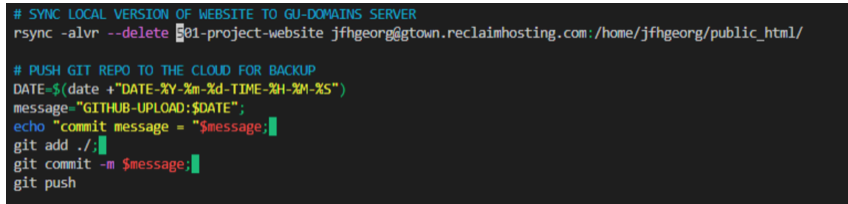
Be careful: This is advanced content, you should only create very simple scripts, unless you know what you are doing.- In particular, we highly recommend NOT USING the
rmcommand in a shell script
- In particular, we highly recommend NOT USING the
Additional important commands (optional)
- These commands are foundational for navigating, managing files, and interacting with a Linux system effectively.
- touch: Create empty files or update timestamps \(\rightarrow\) Creates new empty files or modifies timestamps.
- cat: Concatenate and display file contents \(\rightarrow\) Displays the content of a file in the terminal.
- nano/vi: Text editors \(\rightarrow\) nano
is user-friendly,vi` is powerful but has a steeper learning curve. - echo: Print text to the terminal or a file \(\rightarrow\) Displays text or variables in the terminal.
- grep: Search for text patterns in files \(\rightarrow\) Searches for specific text patterns in files.
- chmod: Change file permissions \(\rightarrow\) Modifies access permissions for files and directories.
- chown: Change file ownership \(\rightarrow\) Changes the owner of files and directories.
- ps: Process status \(\rightarrow\) Lists running processes.
- top/htop: Monitor system resources.
topprovides real-time process monitoring andhtopis a more user-friendly alternative.
- df: Disk space usage \(\rightarrow\) Shows available disk space on filesystems.
- du: Disk usage of files and directories \(\rightarrow\) Displays the space used by specific files or directories.
- wget/curl: Download files from the web \(\rightarrow\)
wgetandcurlcan download files from URLs. - tar: Compress and extract files \(\rightarrow\) Used for archiving and compressing files and directories.
- ssh: Secure Shell \(\rightarrow\) Connects to remote servers securely.
- sudo: Superuser do \(\rightarrow\) Executes commands with
superuser privileges. - history: Show a history of commands entered in the terminal.
Aside: Command line editors (optional)
- You may find yourself inside a server without GUI access \(\rightarrow\) use a command line editor
Nanois a popular command line editor for coding from the command line- e.g.
nano index.html
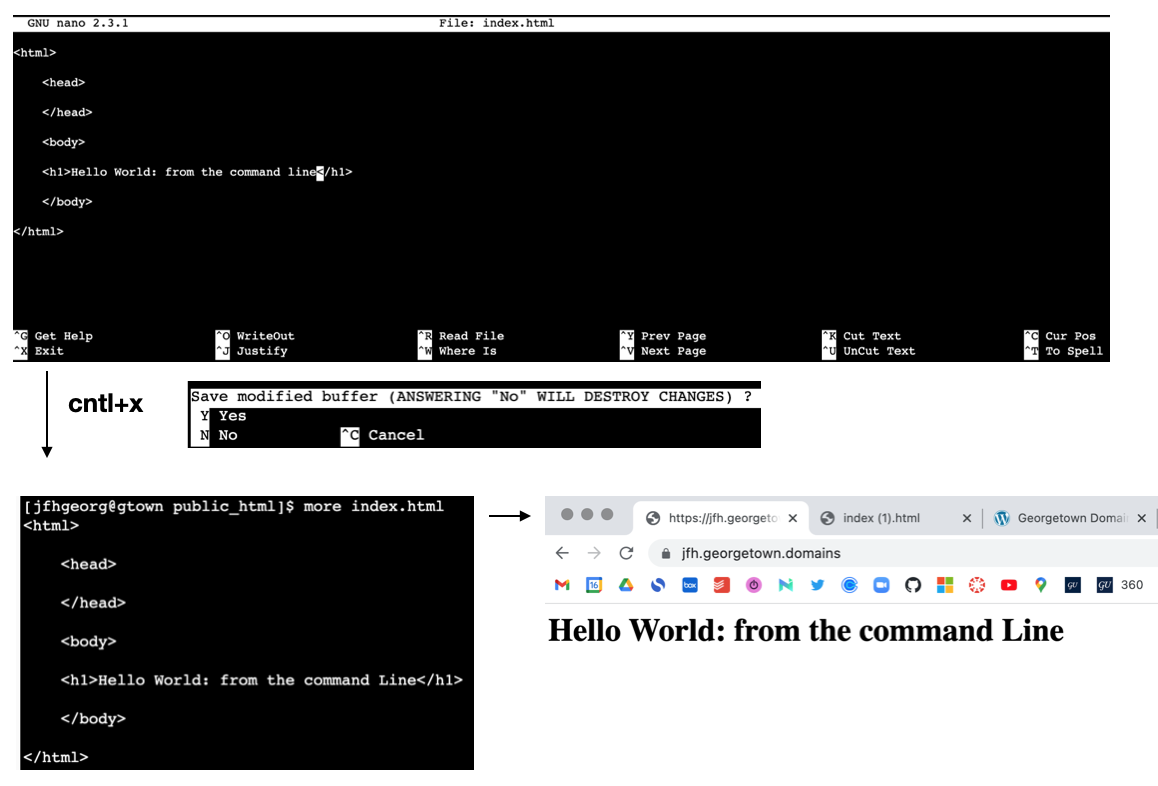
- e.g.
- Other popular options include
emacsandvim(not recommended)
Additional reading (optional)
- If you want to learn more, the following are popular books on the topic
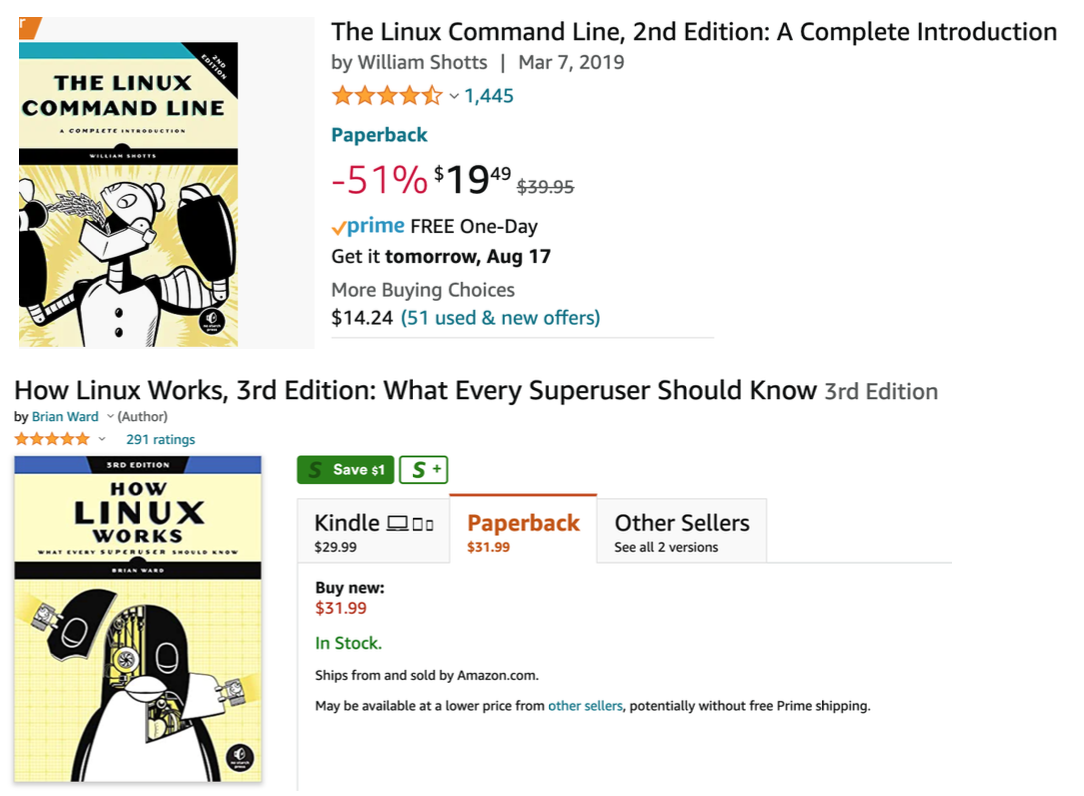
WSL
Optional extra content for Windows users.

Motivation: video tutorial
- Note: You don’t have to do the set-up steps in the video, it is just included to provide context
Installation (Windows only)
- You can now install everything you need to run Windows Subsystem for Linux (WSL) by entering this command in an administrator PowerShell or Windows Command Prompt and then restarting your machine:
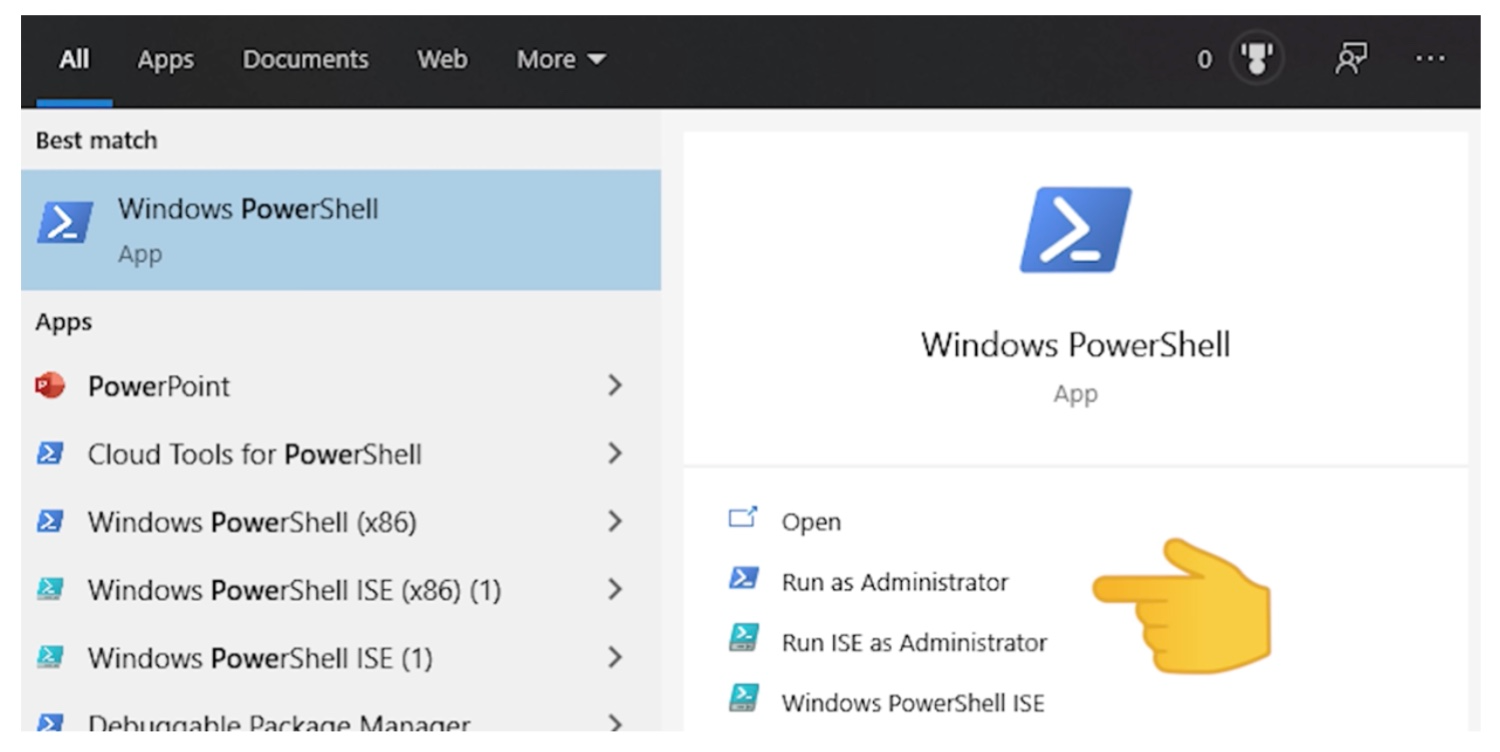
install_wsl.ps1
wsl --install- This command will enable the features necessary to run WSL and install the Ubuntu distribution of Linux. (This default distribution can be changed).
- The first time you launch a newly installed Linux distribution, a console window will open and you’ll be asked to wait for files to de-compress and be stored on your machine. (All future launches should take less than a second.)
Alternative Method
- (If “Easy way” doesn’t work)
- Step 1: Install WSL using this alternative PowerShell command (run as administrator):
wsl_alternative.ps1
Enable-WindowsOptionalFeature -Online -FeatureName Microsoft-Windows-Subsystem-Linux- Step 2: Open Windows Store and install Ubuntu:
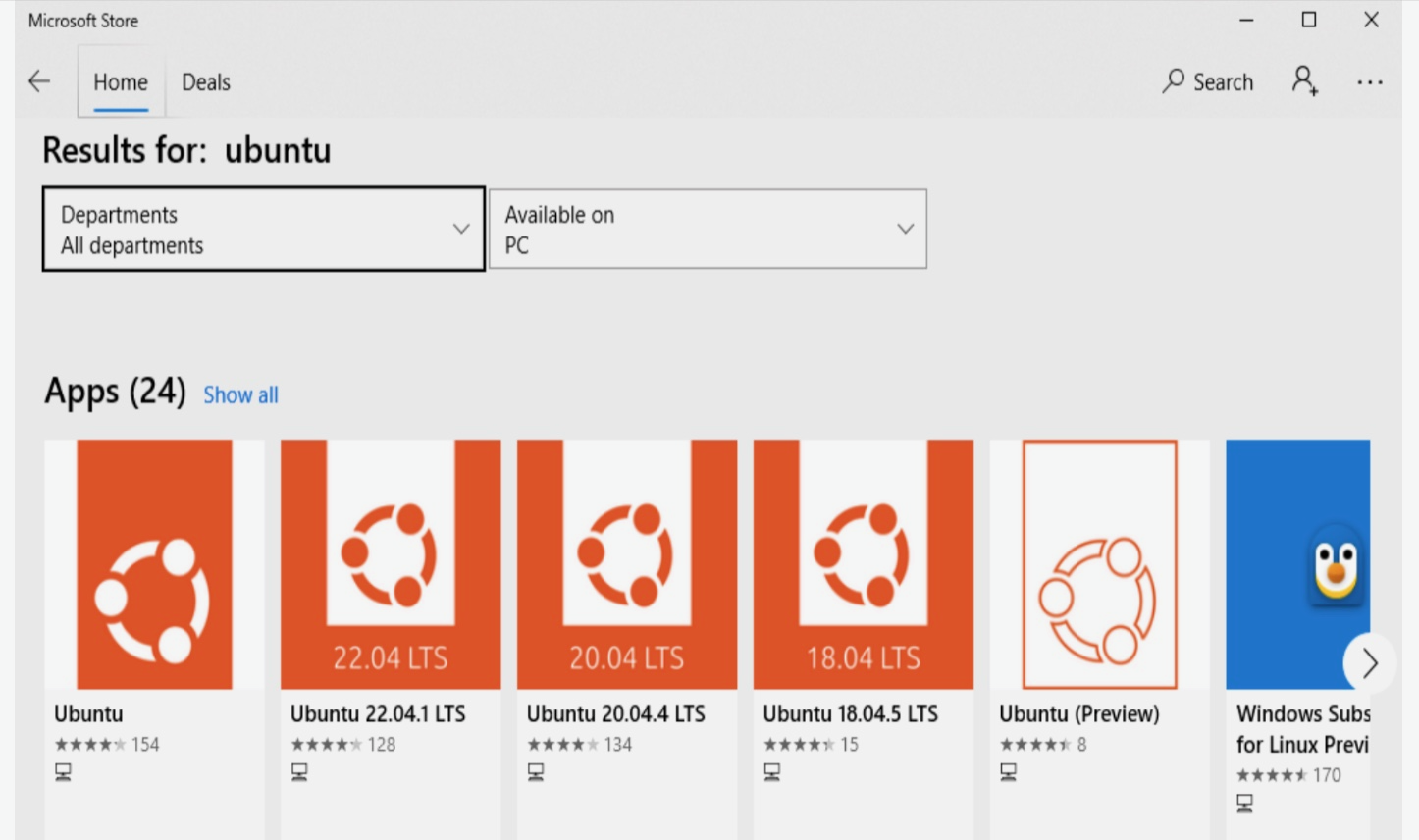
Installing from Windows Store
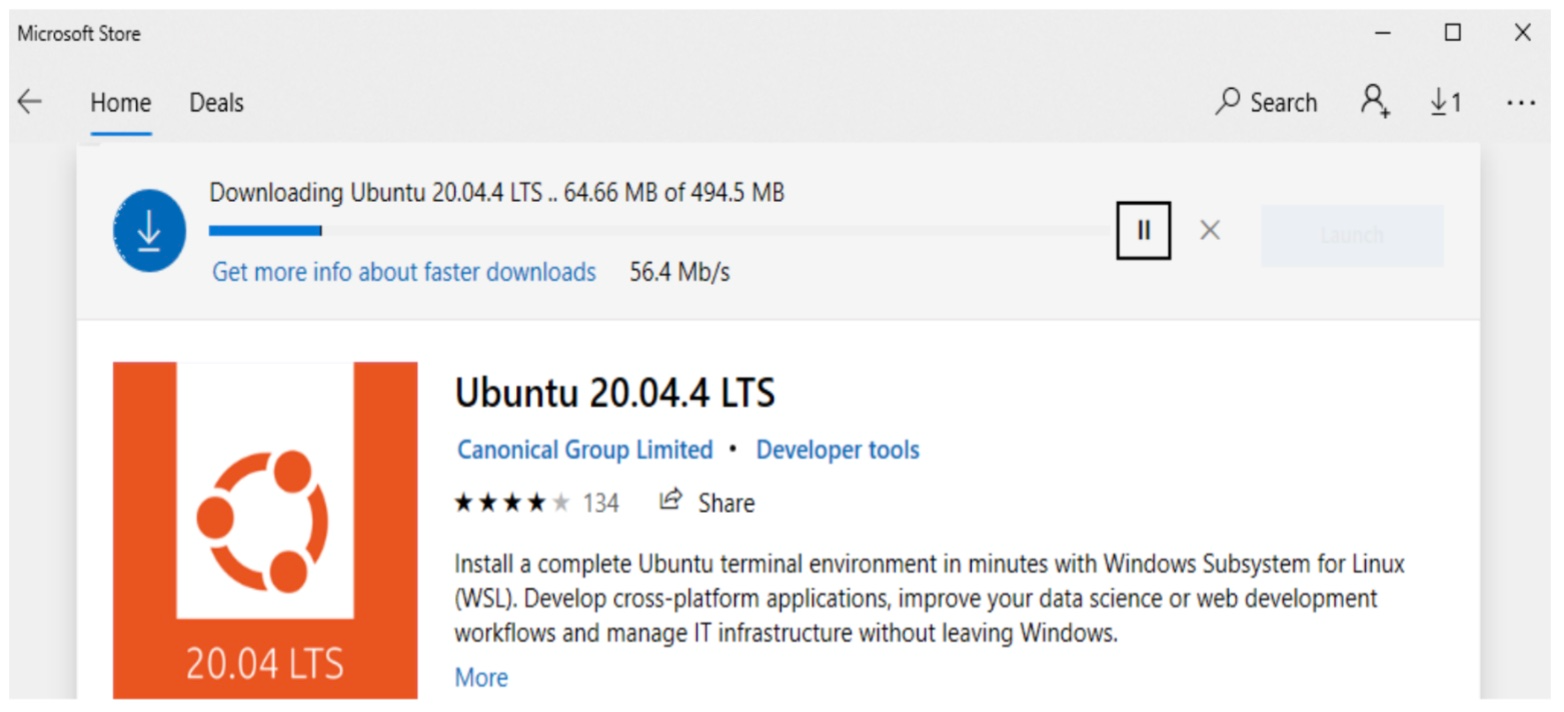
Installing from Windows Store
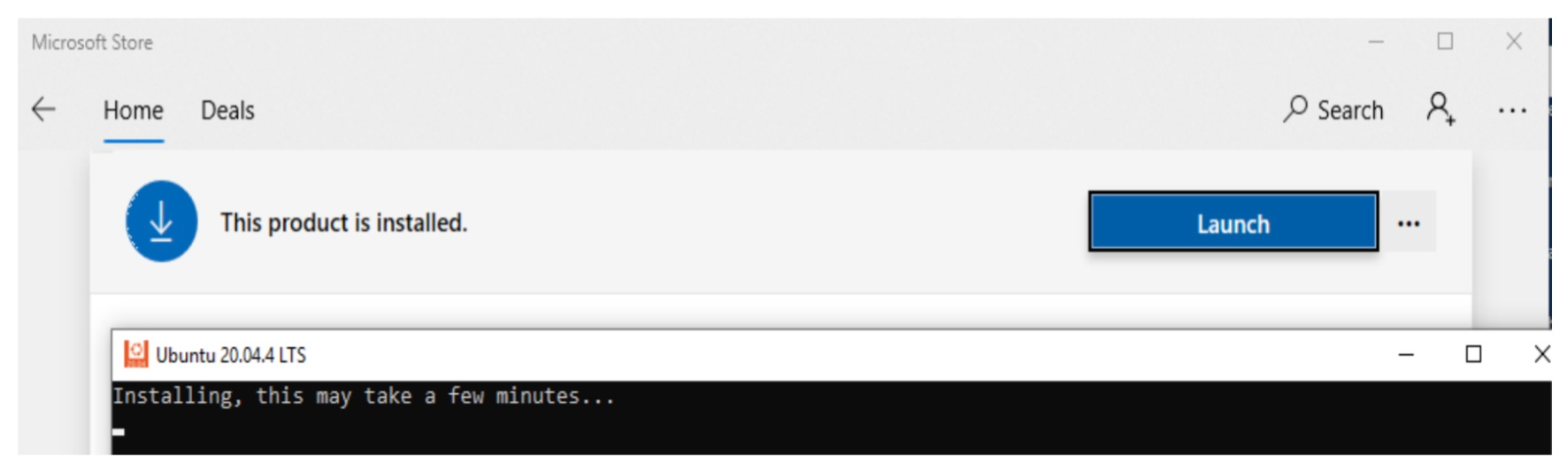
Parallel processing
Optional extra content
Recording
The following is a recording on this topic, I hope you find it useful!
Feel free to watch at 1.5x or 2x speed.
Note: If you find something missing or incorrect in the recording, then please let me know!
Recall: Serial computing analogy
- This is an analog of
serial computing(only asingleprocessing core)
- Computers have generally been
multi-coresince the early 2000’s
Parallel computing analogy
- Parallel processing uses many processing cores and is essential to HPC
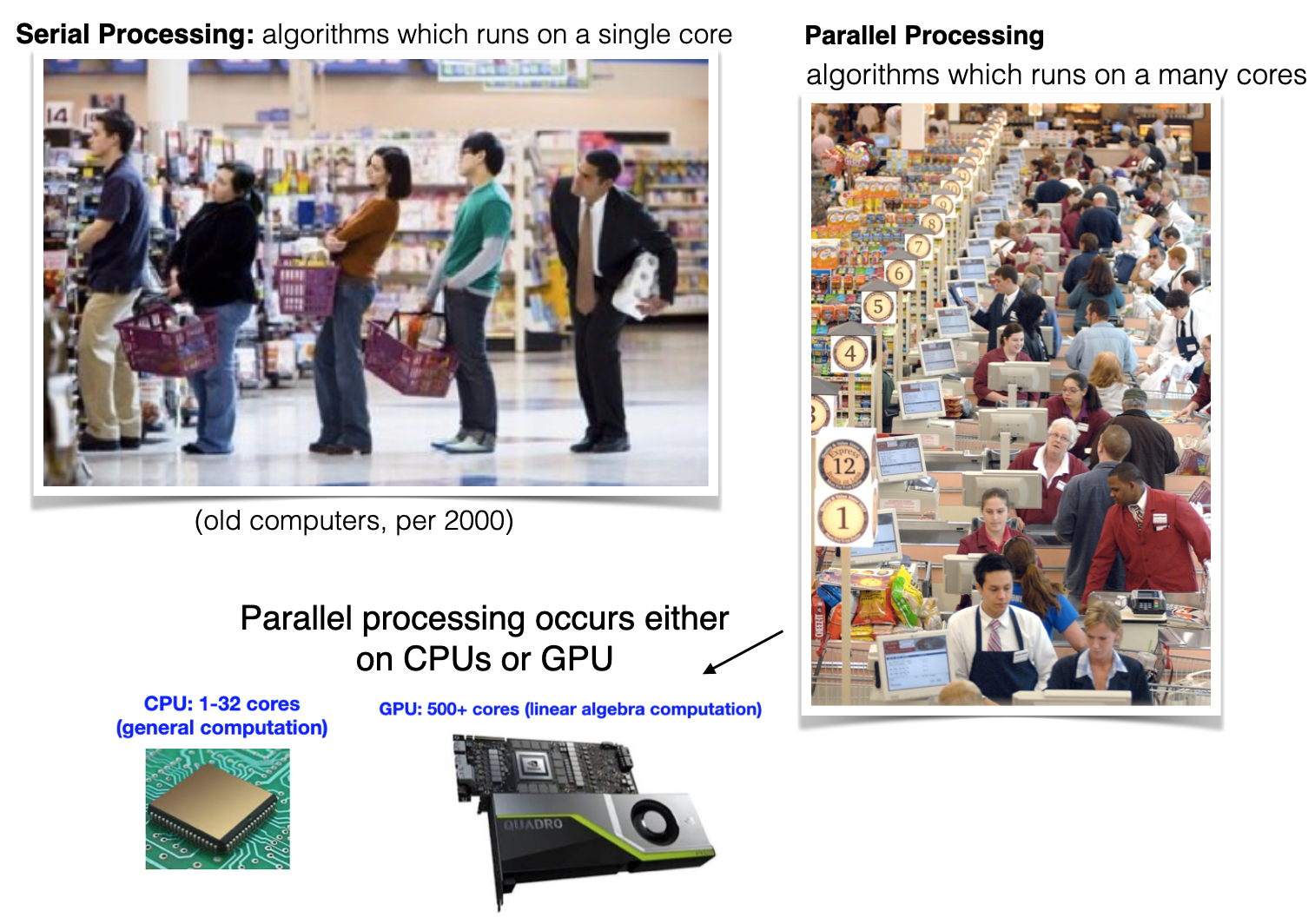
- Two major classes of parallel processing are shared memory & distributed memory
Shared memory parallel processing
- Class of HPC algorithms that utilize a common memory space (
shared RAM), enabling multiplethreadsto efficiently access and manipulate data concurrently. - The CPU (or GPU) cores need to be physically close to each other, meaning that this occurs on the level of one computer
Hyper-threadingleverages CPU (or GPU) resources to execute multiple threads simultaneously, enhancing multitasking and improving overall processor efficiency.- Breaks the computations up on the level of loops, or vectors
- Hyper-threading on CPU is typically done with the
openMPsoftware library - Hyper-threading on GPU is typically done with the
CUDAorOpenCLsoftware
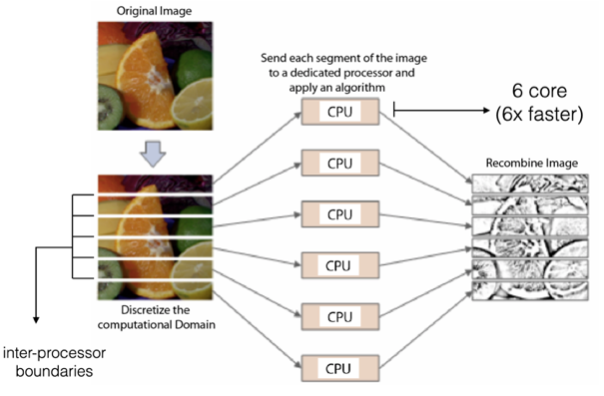
Vectorized computingprocesses data in parallel using vectors, optimizing performance by performing operations on multiple elements simultaneously for efficiency (e.g.numpy)
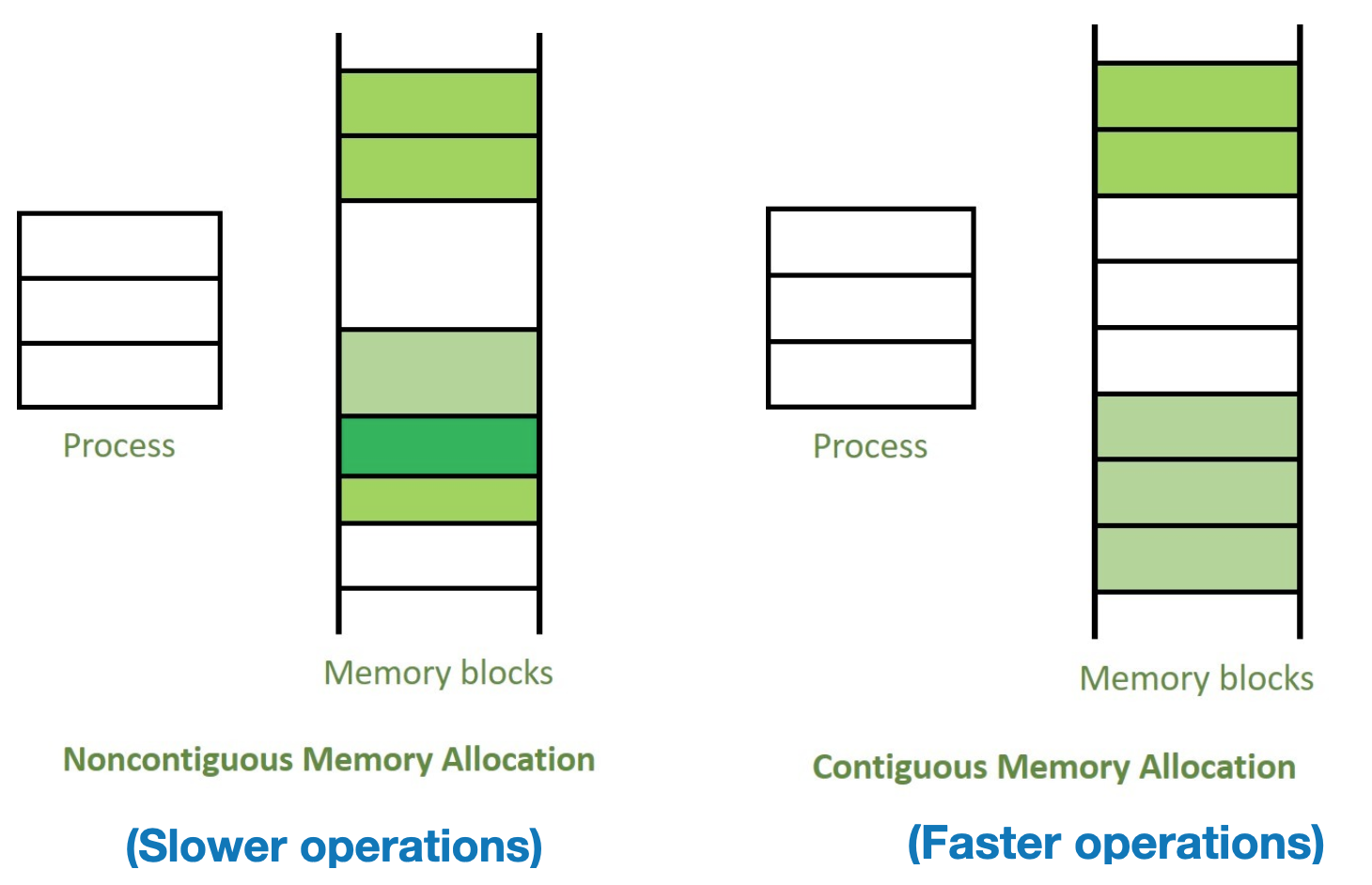
Contiguous memory allocation
- Contiguous memory allocation allocates adjacent blocks of memory for efficient data access, reducing fragmentation and enhancing system performance.
- Important for optimized linear algebra operations in deep learning (e.g. CUDA, OpenMP)
Distributed memory parallelization
- Uses separate memory across multiple computers (
compute nodes), enabling collaborative processing in compute-clusters (networks)(e.g.HadoopandMPI) - Message Passing Interface (MPI) is a library for communication in distributed memory systems, enabling parallel processing across multiple nodes.
- Break up computational jobs on the level of data
- Generally done on
super-computers(i.e many computers networked together)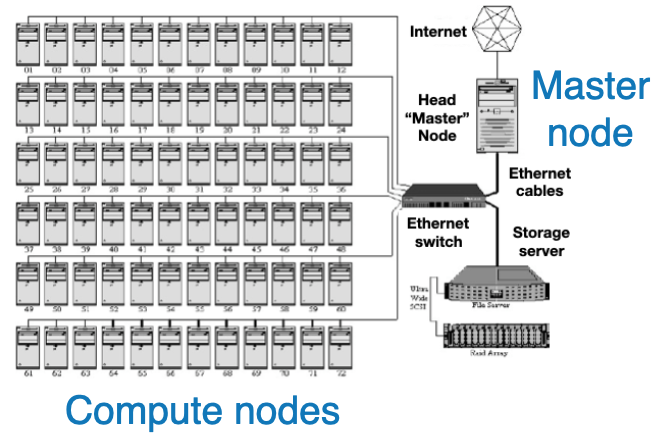
Hybrid:Often HPC tasks combine shared & distributed methods (e.g. MPI + CUDA)
`