gitGraph commit id: "b40dc25"
Version control with Git and GitHub
Introduction
What is Git?
- A distributed version control system for code
- version control: every change you make is tracked and versioned, so it’s easy to rollback to an older state, or to keep multiple states in parallel without overwriting each other
- distributed: your copy of the code is but one of many possible copies.
- Git provides mechanisms for multiple authors to work on the same code at the same time and to merge their changes together
Optional video:
Motivation
- Git is a powerful data science tool, helping them manage code, data, & collaborations effectively, while promoting reproducibility & enhancing their overall productivity.
- Version Control: Easily track changes to code, data, & notebooks for efficient management & experimentation.
- Collaboration: Enable seamless teamwork, code sharing, & joint analysis with colleagues.
- Experiment Tracking: Keep records of model iterations, hyperparameters, & analysis approaches.
- Reproducibilit & Code Sharing: Document & reproduce results by capturing code & data changes.
- Branching: Experiment with new ideas & analysis directions without disrupting the main workflow.
- Integration: Integrate with CI/CD pipelines for automated testing & deployment.
- Documentation: Use commits as documentation for analysis steps, aiding reporting.
- Career Growth: Mastering Git enhances collaboration, contributing to career advancement.
Installing git
- Installing
gitis relatively easy - Installation instructions can be found at the link below

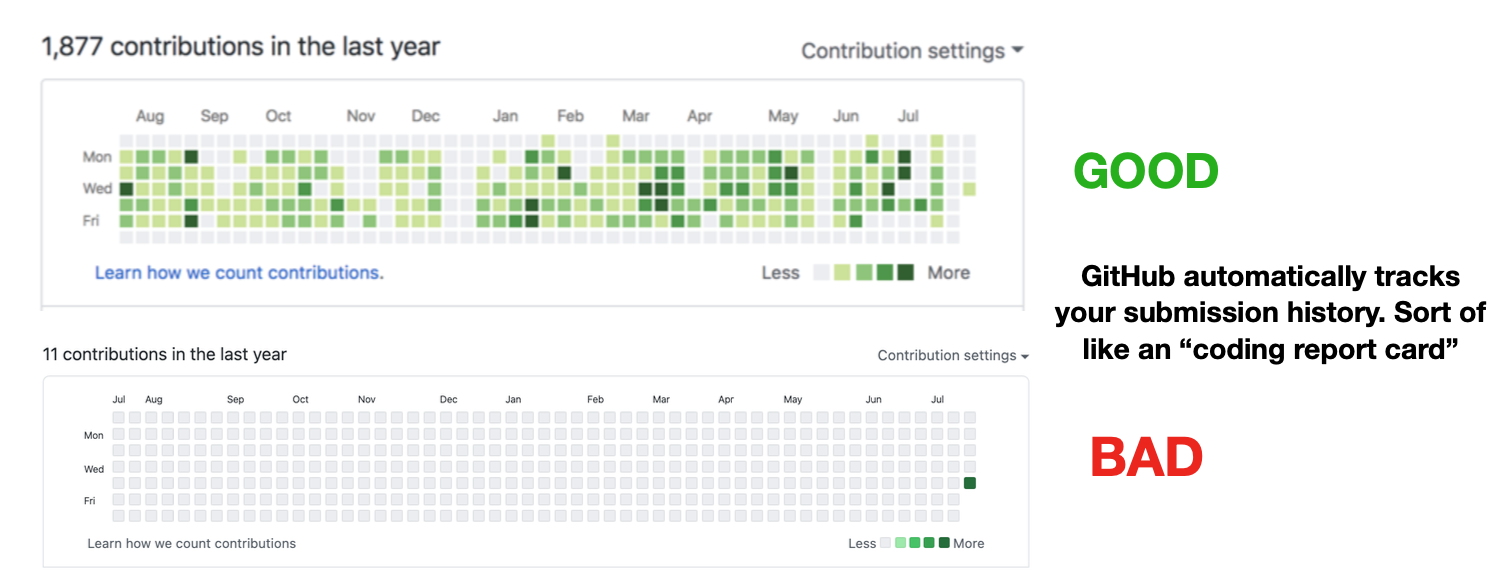
Tracking usage
- In some ways, git advertises how often you code, and generally, more is better
- Employers may look at your Github activity during the hiring process.
Git vs. GitHub
(Important distinction!)
Despite the confusingly similar names, it is important to keep in mind the distinction between Git and GitHub!
- Git is a command-line program, which on its own just runs on your local computer and keeps track of changes to your code.
- GitHub, on the other hand, is a website which allows you to take your Git repositories and store them remotely (online), whether privately or publicly.
This means, for example, that (if your repository is public) once you push your code to GitHub, others can view it and download it for themselves.
- Command-line program
git initin shell to creategit addto track filesgit committo commit changes to tracked files
- Code hosting website
- Create a repository (repo) for each project
- Can clone repos onto your local machine
git push/git pull: The link between the two!
GitHub: the remote website
GitHub repositories
The “box” containing all of your code, data, documentation, etc. for a given project.
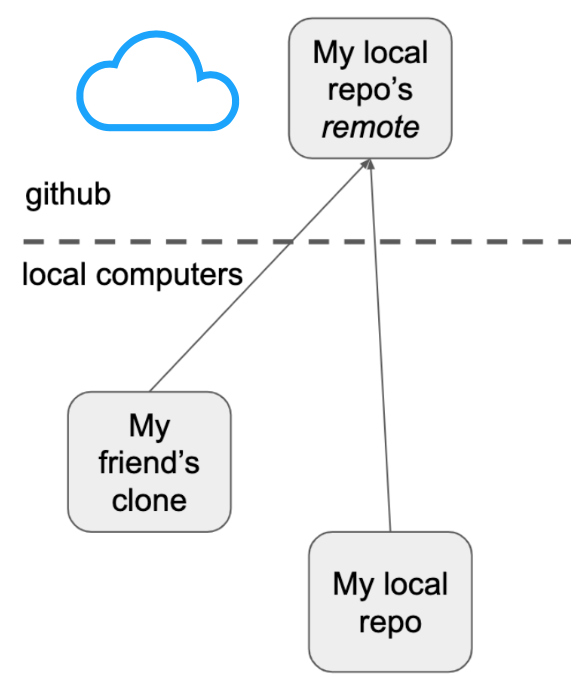
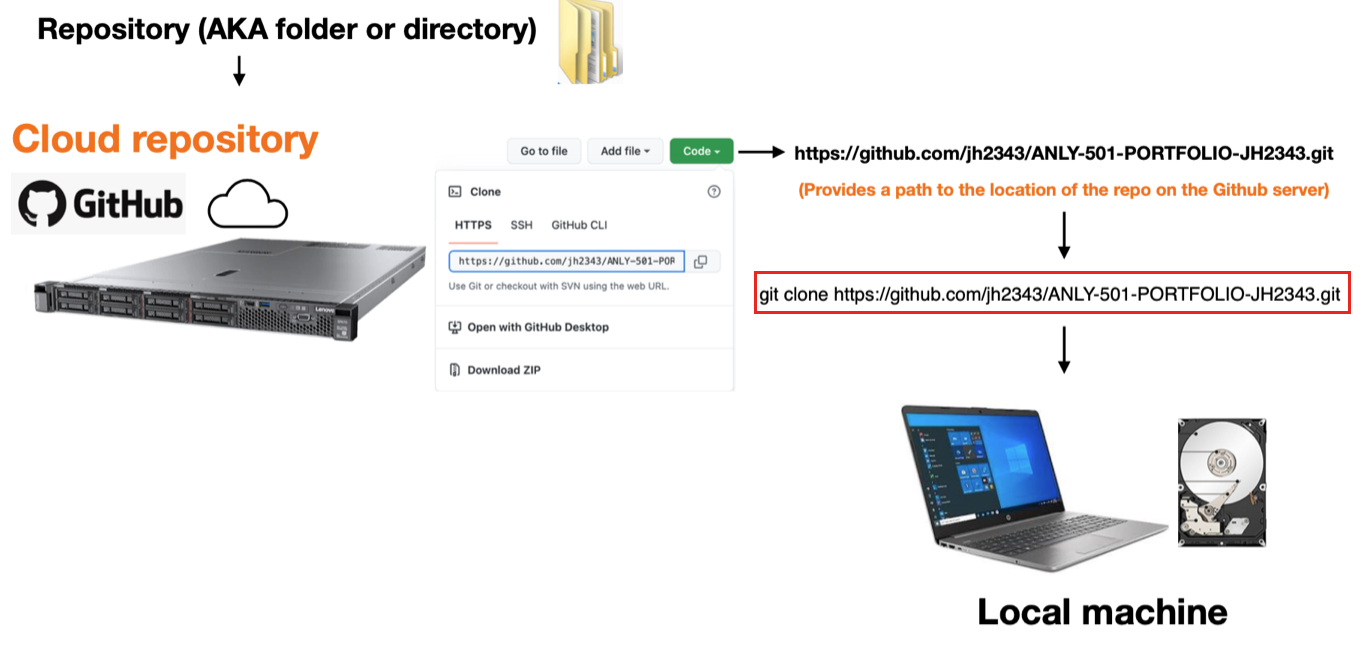
Cloud and local repositories
- GitHub is similar to standard storage cloud services like
Dropbox,Google-Drive, etc - The MAJOR difference is that for those services the syncing between
cloudandlocal machine(e.g. laptop) are automated - With
GitHubthe user manually controls the syncing using thegitcommand-line tool
GitHub Cloud Repositoriesare hosted on GitHub’s cloud platform, enabling collaborative development, version control, and easy sharing.Local Repositoriesexist on your local machine, allowing offline work and testing. They require synchronization with remote repositories to update the code base.
An empty remote repository
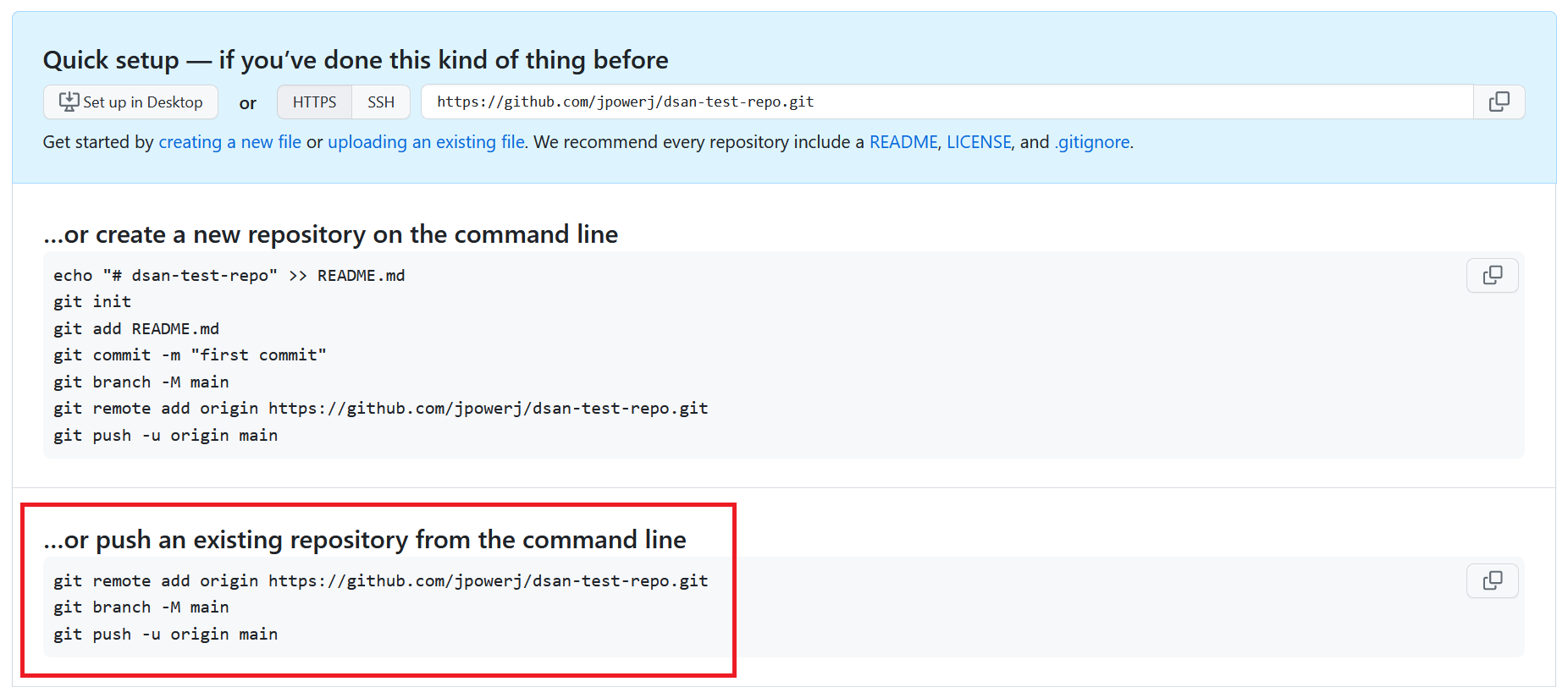
Initializing a remote repository w/ a README
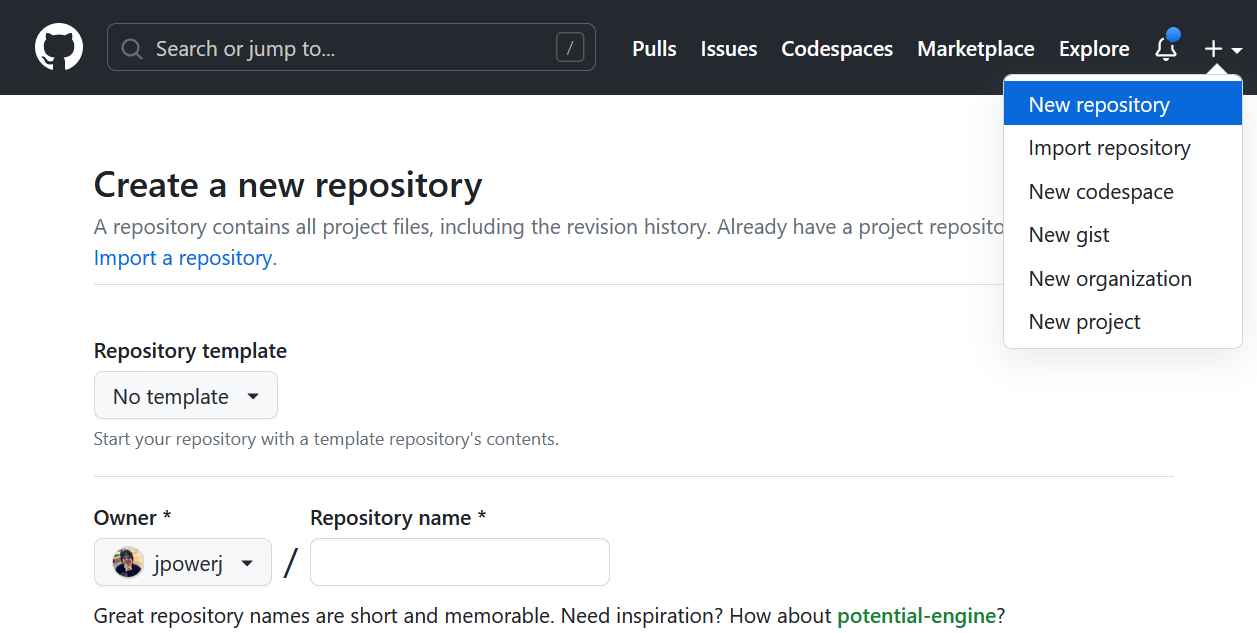
- Initializing a remote repository (on github.com)
- You can Navigate to your GitHub account page,
- click “new”, create a repo name, provide a description, check “Add a README file”
- You can
clonethe cloud repo to your local machine withgit clone URL
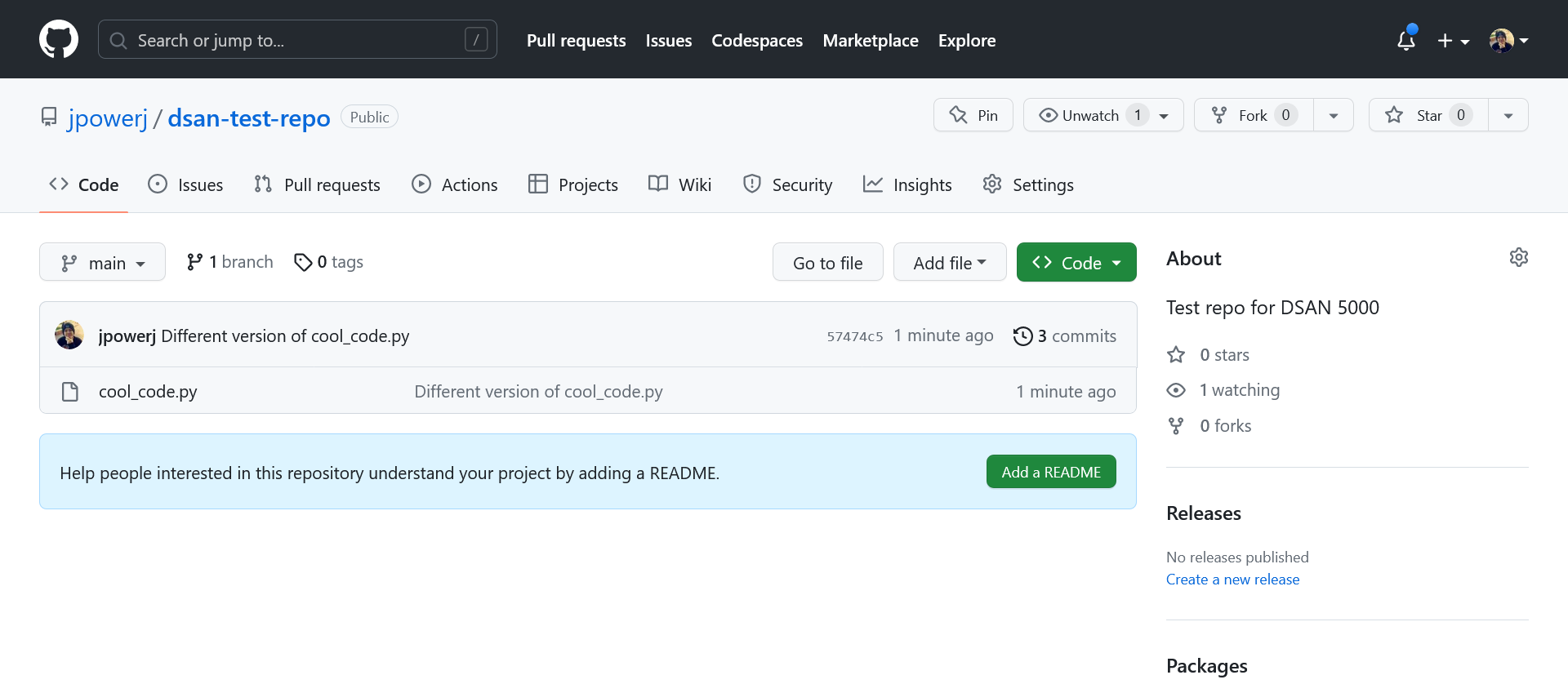
Refreshing after a git push
- If someone added content, e.g. with
git push, then you could refresh the page to see the changes.
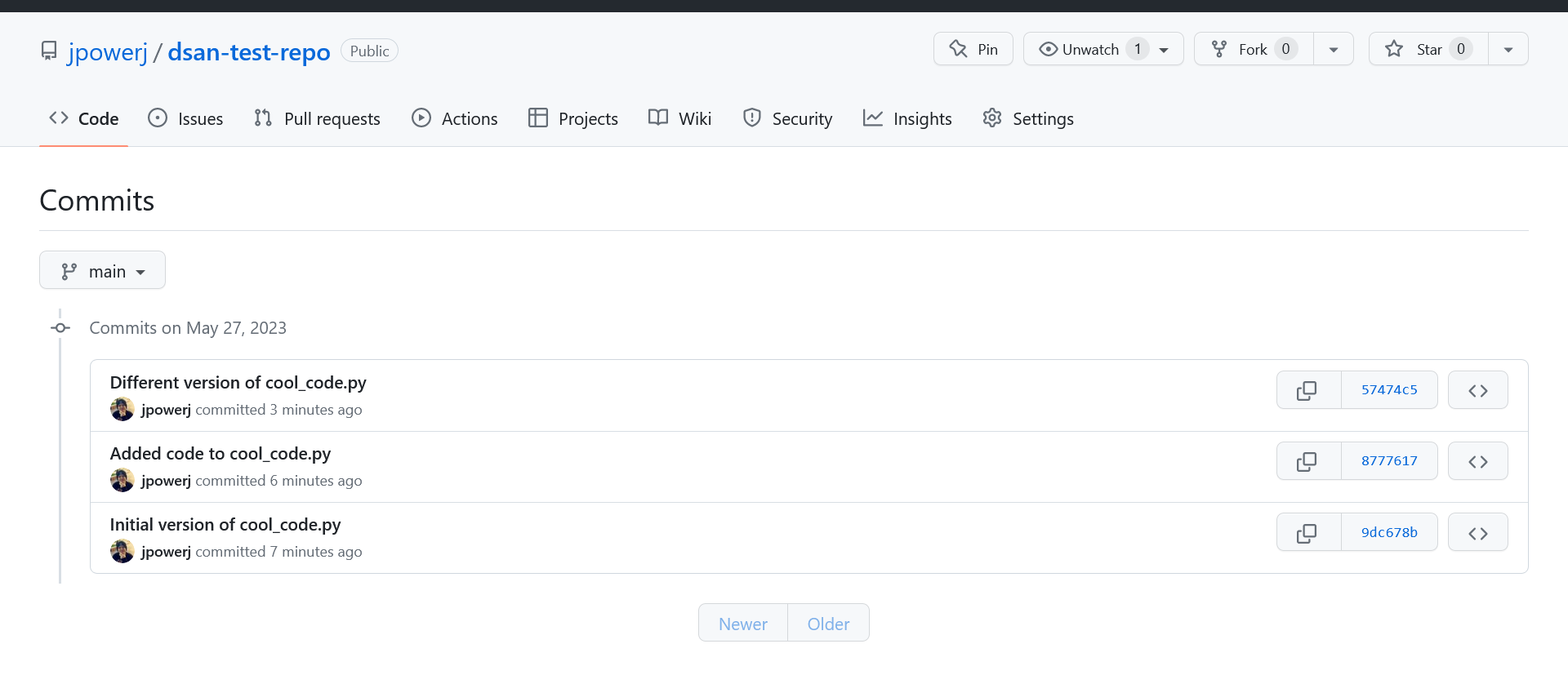
Viewing the commit history
Checking the diff
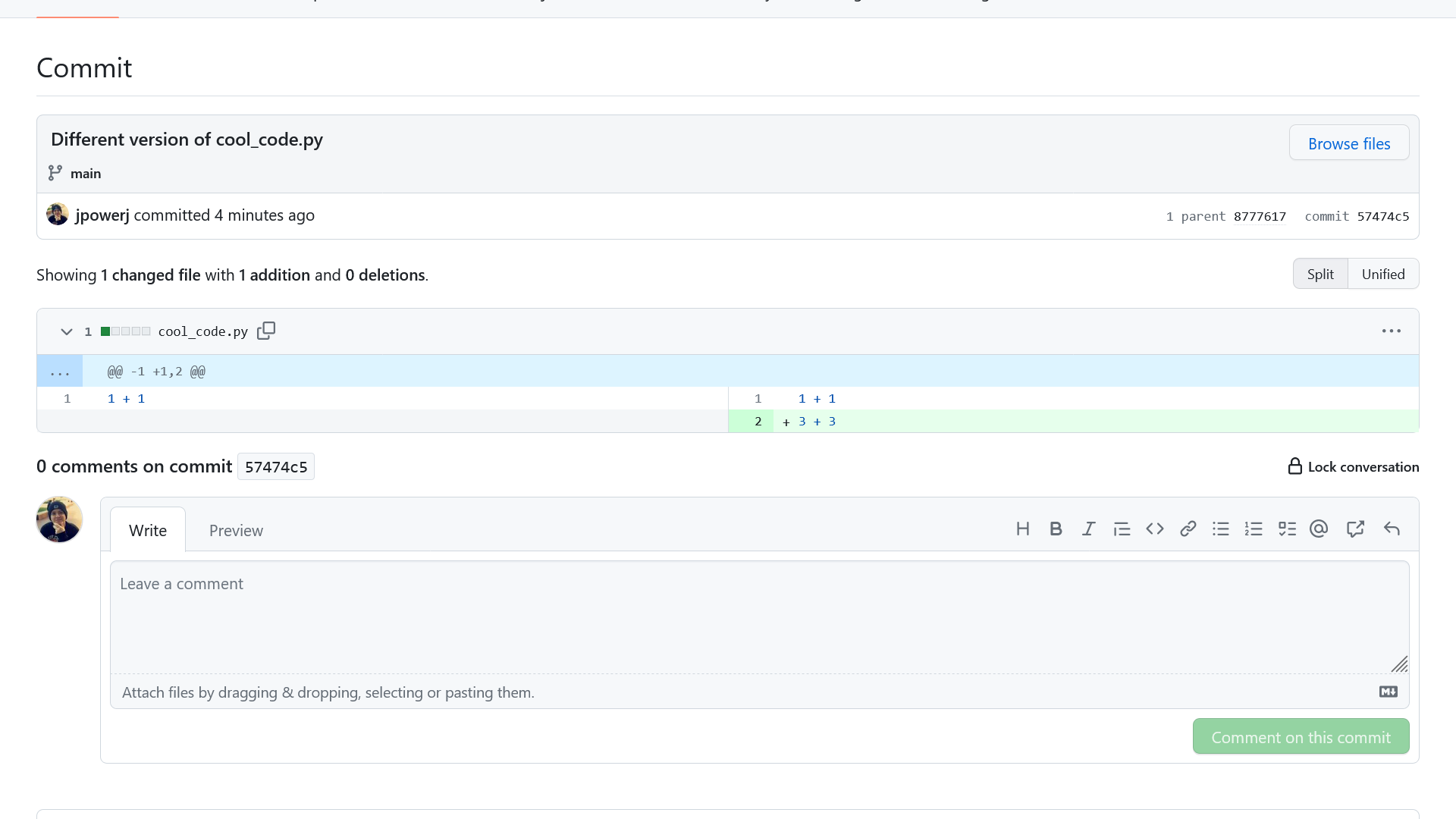
Basic web development with GitHub
| Frontend |
Backend |
|
|---|---|---|
| Low Level | HTML/CSS/JavaScript | GitHub Pages |
| Middle Level | JS Libraries | PHP, SQL |
| High Level | React, Next.js | Node.js, Vercel |
Frontend icons: UI+UI elements, what the user sees (on the screen), user experience (UX), data visualization Backend icons: Databases, Security
Git
The local command-line program
Git branches
- Branches in Git are separate lines of development that allow you to work on new features or bug fixes independently without affecting the main codebase.
- Each branch represents a distinct path of development, and changes can be merged back into the main branch when ready.
- Branches facilitate parallel and organized development in Git repositories.
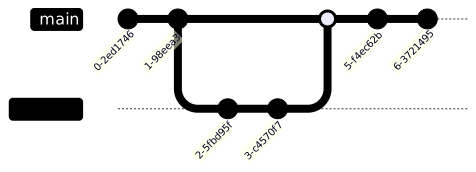
Initializing a local repository
- Let’s make a directory for a project called
cool-project, & initialize a Git repo for it
user@hostname:~$ mkdir cool-project
user@hostname:~$ cd cool-project
user@hostname:~/cool-project$ git init
Initialized empty Git repository in /home/user/cool-project/.git/- This creates a hidden folder,
.git, in the directory:
user@hostname:~/cool-project$ ls -lah
total 12K
drwxr-xr-x  3 user user 4.0K May 28 00:53 .
drwxr-xr-x 12 user user 4.0K May 28 00:53 ..
drwxr-xr-x  7 user user 4.0K May 28 00:53 .git
Adding and committing a file
We’re writing Python code, so let’s create and track cool_code.py:
user@hostname:~/cool-project$ touch cool_code.py
user@hostname:~/cool-project$ git add cool_code.py
user@hostname:~/cool-project$ git status
On branch main

No commits yet

Changes to be committed:
  (use "git rm --cached <file>..." to unstage)
        new file:   cool_code.py

user@hostname:~/cool-project$ git commit -m "Initial version of cool_code.py"
[main (root-commit) b40dc25] Initial version of cool_code.py
 1 file changed, 0 insertions(+), 0 deletions(-)
 create mode 100644 cool_code.py
The commit log
- View the commit log using
git log:
user@hostname:~/cool-project$ git log
commit b40dc252a3b7355cc4c28397fefe7911ff3c94b9 (HEAD -> main)
Author: Jeff Jacobs <jjacobs3@cs.stanford.edu>
Date:   Sun May 28 00:57:16 2023 +0000

    Initial version of cool_code.py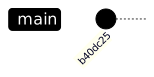
Making changes
user@hostname:~/cool-project$ git status
On branch main
nothing to commit, working tree clean
user@hostname:~/cool-project$ echo "1 + 1" >> cool_code.py
user@hostname:~/cool-project$ more cool_code.py
1 + 1
user@hostname:~/cool-project$ git add cool_code.py
user@hostname:~/cool-project$ git status
On branch main
Changes to be committed:
  (use "git restore --staged <file>..." to unstage)
        modified:   cool_code.py

user@hostname:~/cool-project$ git commit -m "Added code to cool_code.py"
[main e3bc497] Added code to cool_code.py
 1 file changed, 1 insertion(+)
The output of the git log command will show the new version:
user@hostname:~/cool-project$ git log
commit e3bc497acbb5a487566ff2014dcd7b83d0c75224 (HEAD -> main)
Author: Jeff Jacobs <jjacobs3@cs.stanford.edu>
Date:   Sun May 28 00:38:05 2023 +0000

    Added code to cool_code.py

commit b40dc25b14c0426b06c8d182184e147853f3c12e
Author: Jeff Jacobs <jjacobs3@cs.stanford.edu>
Date:   Sun May 28 00:37:02 2023 +0000

    Initial version of cool_code.py
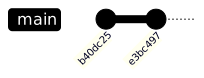
More changes
user@hostname:~/cool-project$ echo "2 + 2" >> cool_code.py
user@hostname:~/cool-project$ more cool_code.py
1 + 1
2 + 2
user@hostname:~/cool-project$ git add cool_code.py
user@hostname:~/cool-project$ git status
On branch main
Changes to be committed:
  (use "git restore --staged <file>..." to unstage)
        modified:   cool_code.py

user@hostname:~/cool-project$ git commit -m "Second version of cool_code.py"
[main 4007db9] Second version of cool_code.py
 1 file changed, 1 insertion(+)
And we check the git log again:
user@hostname:~/cool-project$ git log
commit 4007db9a031ca134fe09eab840b2bc845366a9c1 (HEAD -> main)
Author: Jeff Jacobs <jjacobs3@cs.stanford.edu>
Date:   Sun May 28 00:39:28 2023 +0000

    Second version of cool_code.py

commit e3bc497acbb5a487566ff2014dcd7b83d0c75224
Author: Jeff Jacobs <jjacobs3@cs.stanford.edu>
Date:   Sun May 28 00:38:05 2023 +0000

    Added code to cool_code.py

commit b40dc25b14c0426b06c8d182184e147853f3c12e
Author: Jeff Jacobs <jjacobs3@cs.stanford.edu>
Date:   Sun May 28 00:37:02 2023 +0000

    Initial (empty) version of cool_code.py
Undoing a commit
First check the git log to find the hash code (a 40-character-long string of letters and numbers uniquely identifying each commit) for the commit you want to revert back to:
commit e3bc497acbb5a487566ff2014dcd7b83d0c75224
Author: Jeff Jacobs <jjacobs3@cs.stanford.edu>
Date:   Sun May 28 00:38:05 2023 +0000

    Added code to cool_code.py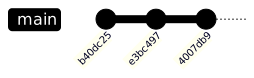
- This is irreversable!
user@hostname:~/cool-project$ git reset --hard e3bc497ac
HEAD is now at e3bc497 Added code to cool_code.py
user@hostname:~/cool-project$ git log
commit e3bc497acbb5a487566ff2014dcd7b83d0c75224 (HEAD -> main)
Author: Jeff Jacobs <jjacobs3@cs.stanford.edu>
Date:   Sun May 28 00:38:05 2023 +0000

    Added code to cool_code.py

commit b40dc25b14c0426b06c8d182184e147853f3c12e
Author: Jeff Jacobs <jjacobs3@cs.stanford.edu>
Date:   Sun May 28 00:37:02 2023 +0000

    Initial (empty) version of cool_code.py
Onwards and upwards
user@hostname:~/cool-project$ echo "3 + 3" >> cool_code.py
user@hostname:~/cool-project$ git add cool_code.py
user@hostname:~/cool-project$ git status
On branch main
Changes to be committed:
  (use "git restore --staged <file>..." to unstage)
        modified:   cool_code.py

user@hostname:~/cool-project$ git commit -m "Added different code to cool_code.py"
[main 700d955] Added different code to cool_code.py
 1 file changed, 1 insertion(+)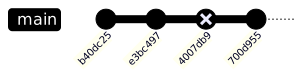
The final git log output looks like:
user@hostname:~/cool-project$ git log
commit 700d955faacb27d7b8bc464b9451851b5e319f20 (HEAD -> main)
Author: Jeff Jacobs <jjacobs3@cs.stanford.edu>
Date:   Sun May 28 00:44:49 2023 +0000

    Added different code to cool_code.py

commit e3bc497acbb5a487566ff2014dcd7b83d0c75224
Author: Jeff Jacobs <jjacobs3@cs.stanford.edu>
Date:   Sun May 28 00:38:05 2023 +0000

    Added code to cool_code.py

commit b40dc25b14c0426b06c8d182184e147853f3c12e
Author: Jeff Jacobs <jjacobs3@cs.stanford.edu>
Date:   Sun May 28 00:37:02 2023 +0000

    Initial (empty) version of cool_code.py
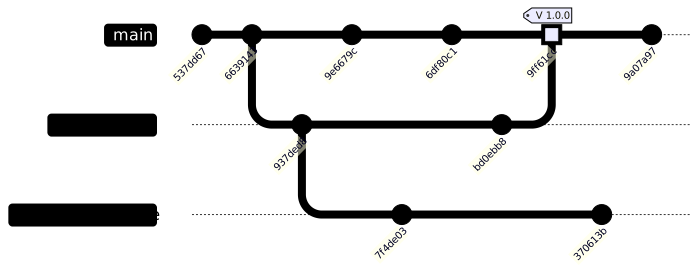
But why these diagrams?
Even the simplest projects can start to look like:
gitGraph
       commit id: "537dd67"
       commit id: "6639143"
       branch nice_feature
       checkout nice_feature
       commit id: "937ded8"
       checkout main
       commit id: "9e6679c"
       checkout nice_feature
       branch very_nice_feature
       checkout very_nice_feature
       commit id: "7f4de03"
       checkout main
       commit id: "6df80c1"
       checkout nice_feature
       commit id: "bd0ebb8"
       checkout main
       merge nice_feature id: "9ff61cc" tag: "V 1.0.0" type: HIGHLIGHT
       checkout very_nice_feature
       commit id: "370613b"
       checkout main
       commit id: "9a07a97"
Summary: Important git commands
These are some of the most important Git commands
- git init: Initializes a new Git repository in the current directory.
- git clone [repository URL]: Copies a remote repository to your local machine.
- git add [file(s)]: Stages changes for the next commit.
- git commit -m “[commit message]”: Records staged changes with a descriptive message.
- git pull: Fetches changes from a remote repository and merges them into your local branch.
- git push: Pushes committed changes to a remote repository.
- git branch: Lists local branches and shows the current branch.
- git checkout [branch/commit]: Switches to a different branch or commit.
- git merge [branch]: Merges changes from another branch into the current branch.
- git status: Displays the status of modified files in your repository.
- git log: Shows a history of commits.
- git remote -v: Lists remote repositories associated with your local repository.
- git stash: Temporarily saves changes that aren’t ready for commit.
- git fetch: Retrieves updates from remote repositories without merging them.
- git reset [file(s)]: Unstages changes from the staging area.
- git diff: Shows differences between your working directory and the last commit.
Publishing content
(optional: Please use GU domains instead of Git-page)
Getting content onto the internet
-
Step 1:
index.html - Step 2: Create GitHub repository
-
Step 3:
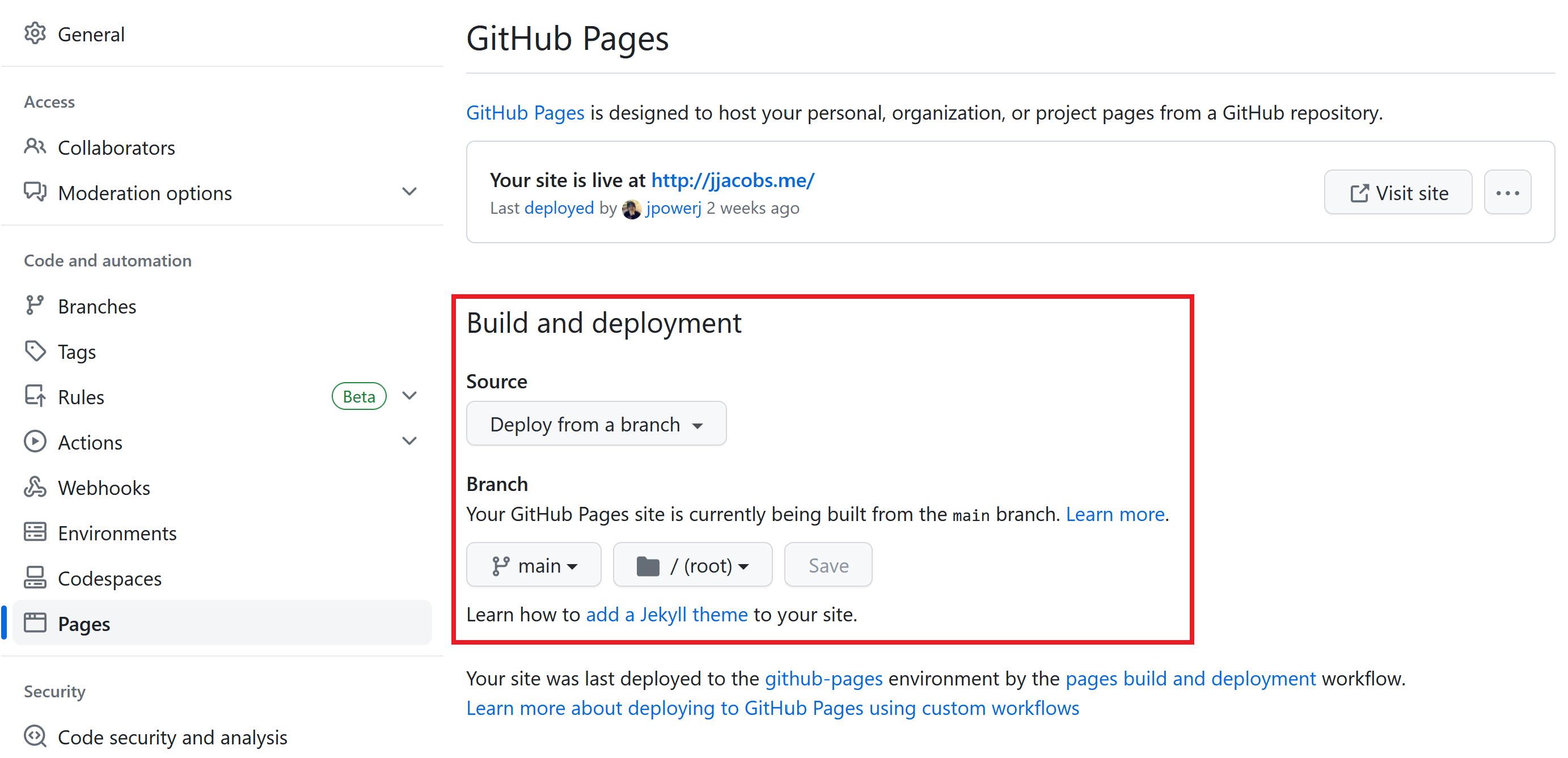
git init,git add -A .,git push - Step 4: Enable GitHub Pages in repo settings
-
Step 5:
<username>.github.io!
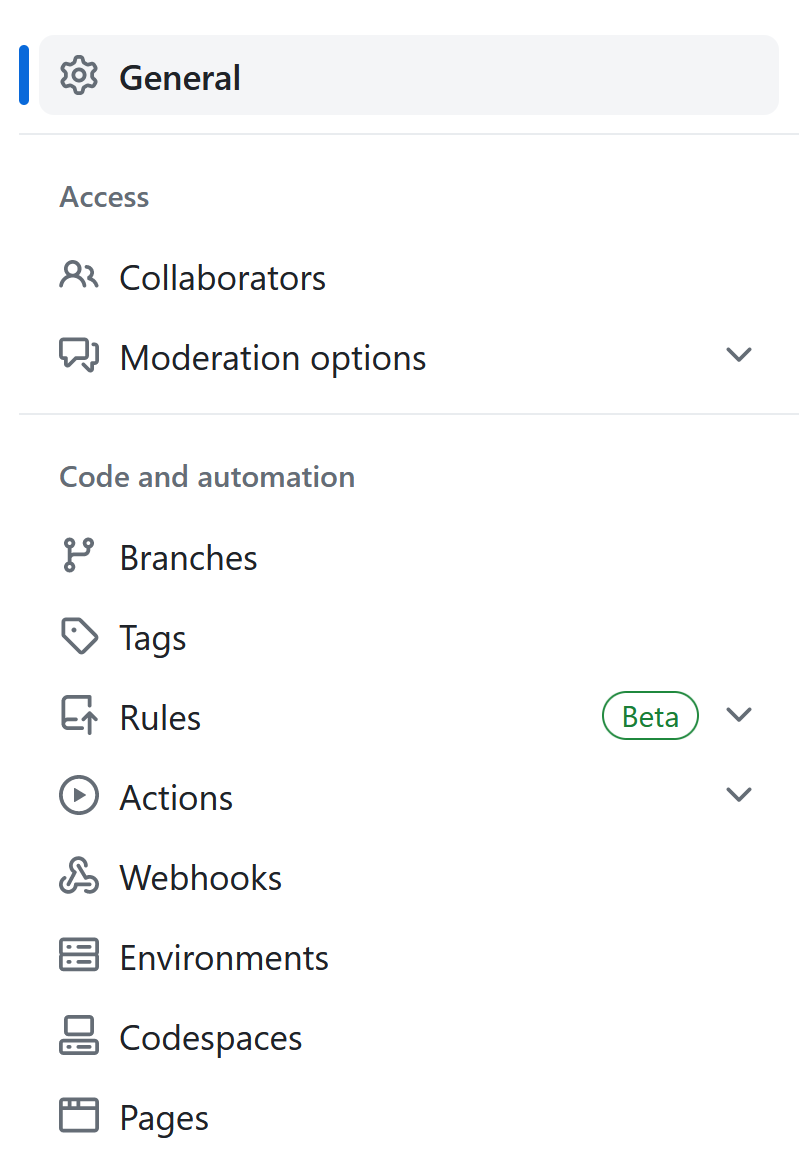
Deploying from a branch/folder